Open HelloGroom & Choose a Service
1 / 15
What to do
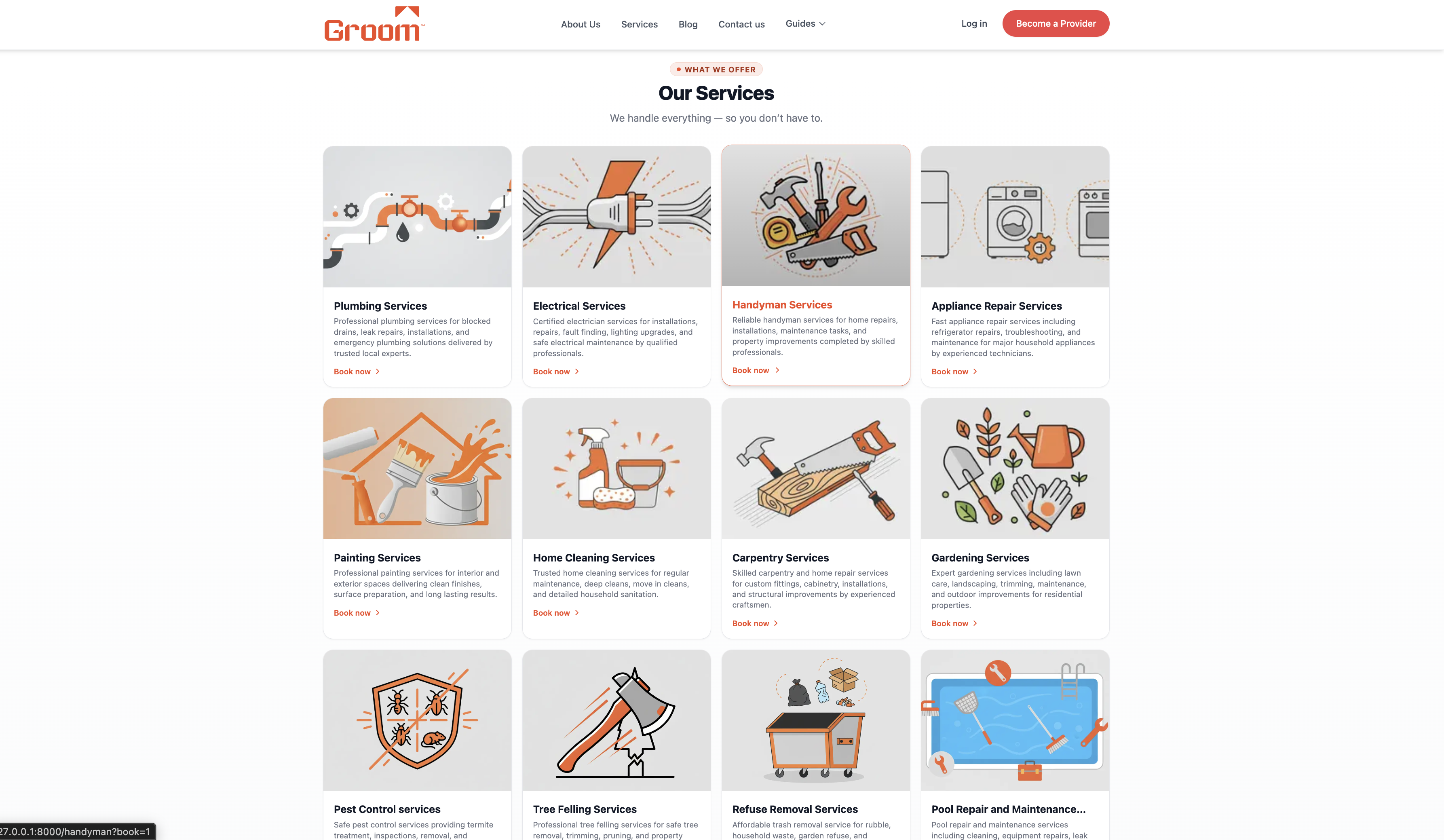
Go to hellogroom.co.za — scroll to the Services section and tap the service you need.
You will see a grid of service categories. Tap on the one that matches your need (Cleaning, Plumbing, Electrical, Garden, etc.) and you will be taken to the booking page.
If you're on mobile, the services appear as scrollable cards. On desktop they show as a full grid.
You land on the service booking page.
Create Your Account
2 / 15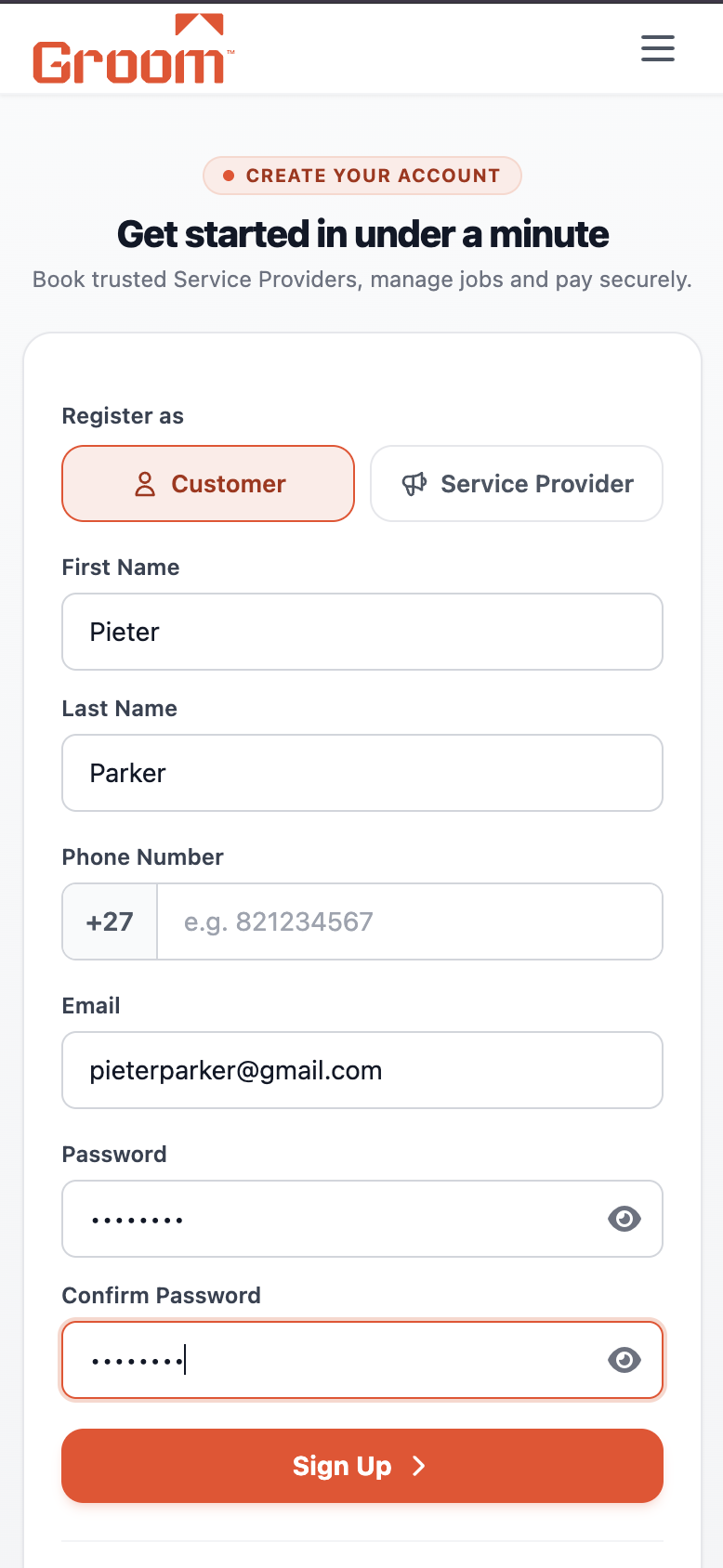
What to do
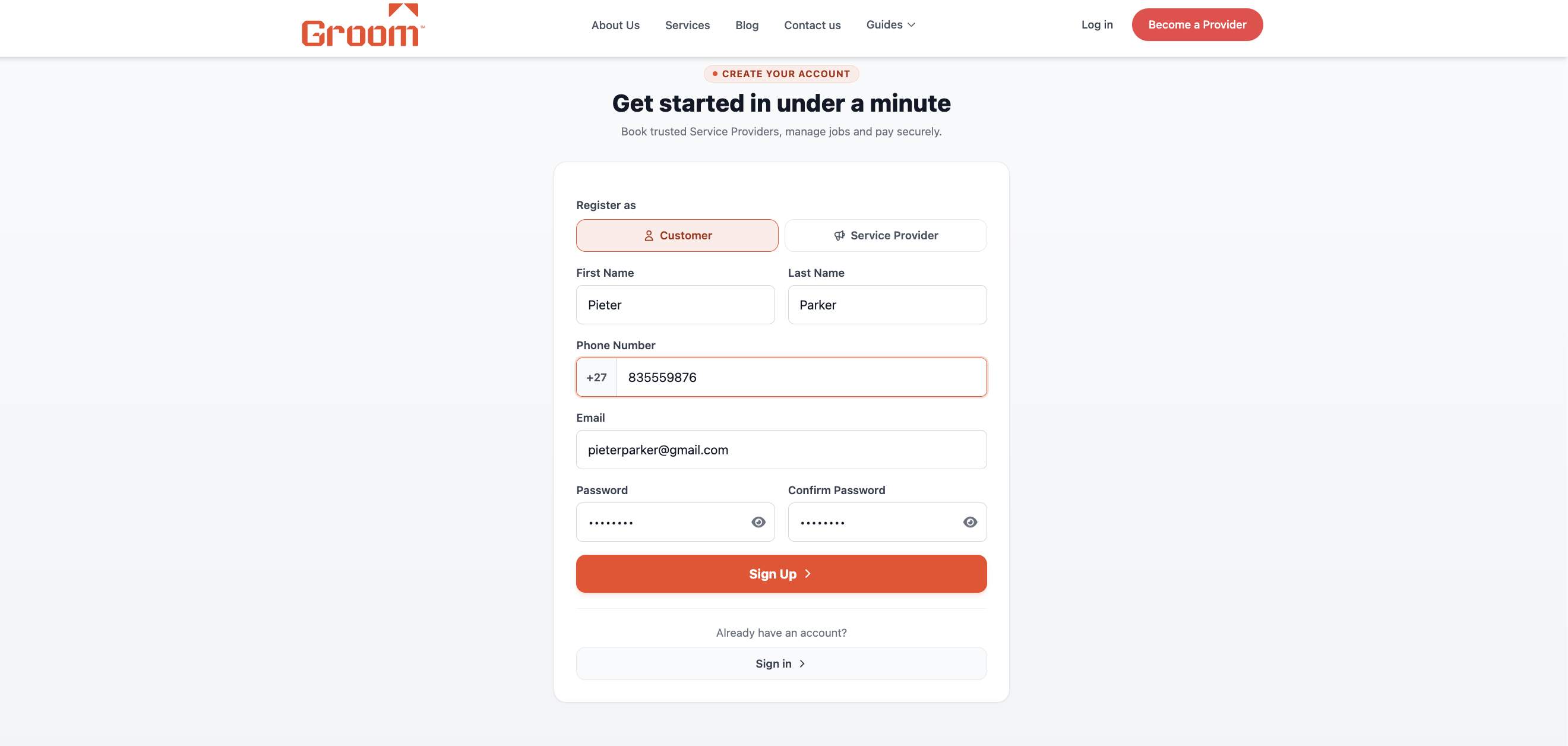
Tap "Sign Up" at the top of the page. Choose "Customer" as your account type.
Enter your first name, last name, email address, and a password. Tap "Register". Already have an account? Tap "Log In" instead.
Make sure to select "Customer" — not Service Provider — when registering.
💡 Tip: Already have an account? Tap "Log In" and skip to Step 3.
You are logged in to your HelloGroom account.
Verify Your Phone Number (OTP)
3 / 15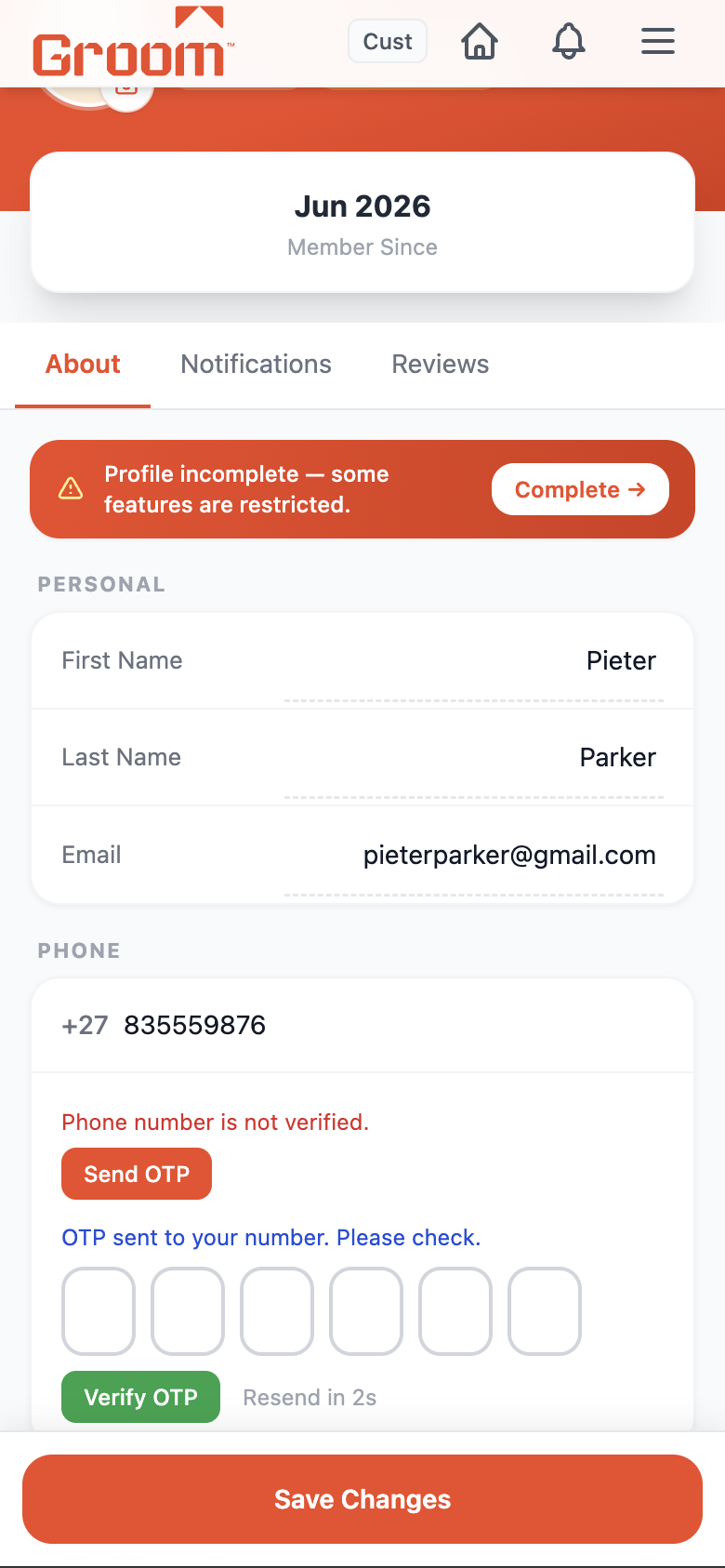
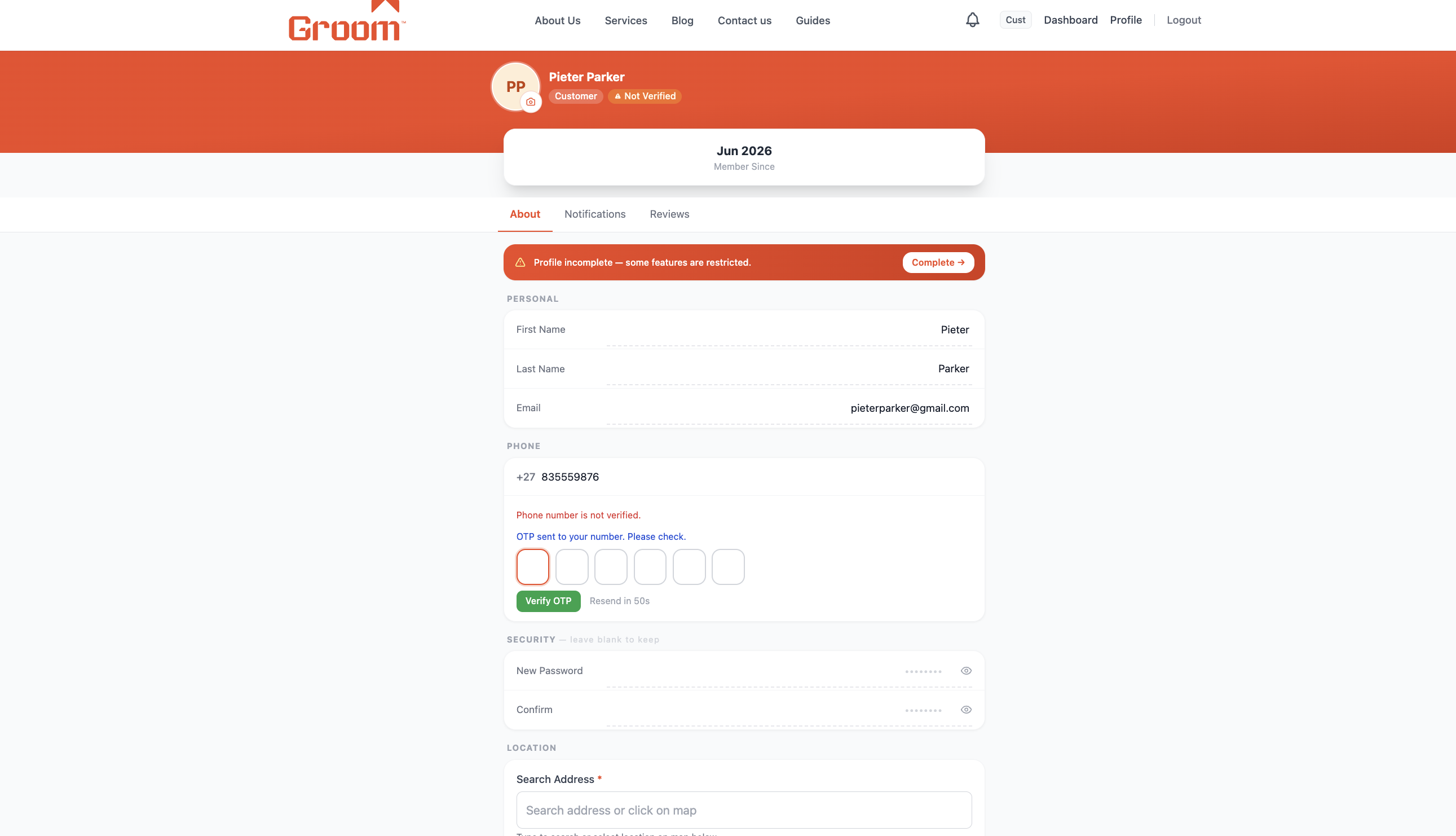
What to do
Go to your Profile. Enter your SA mobile number and tap "Verify Phone" to receive an OTP via SMS.
A 6-digit One-Time Pin is sent to your phone. Enter it in the OTP box and tap "Confirm". A green tick will appear to show your phone is verified.
⚠️ Required: You cannot post a job until your phone is verified. This protects you and the service providers.
💡 Tip: If the OTP doesn't arrive within 60 seconds, tap "Resend".
Green "Phone number is verified" message appears.
Describe Your Problem
4 / 15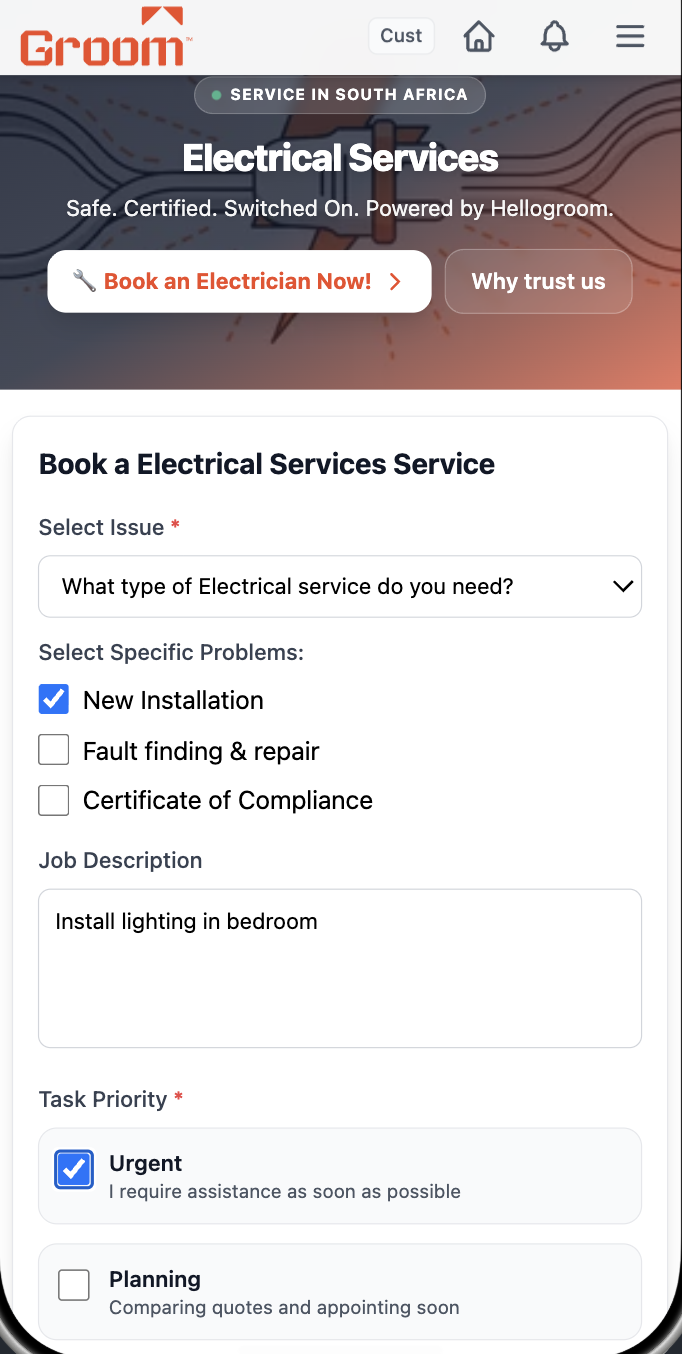
What to do
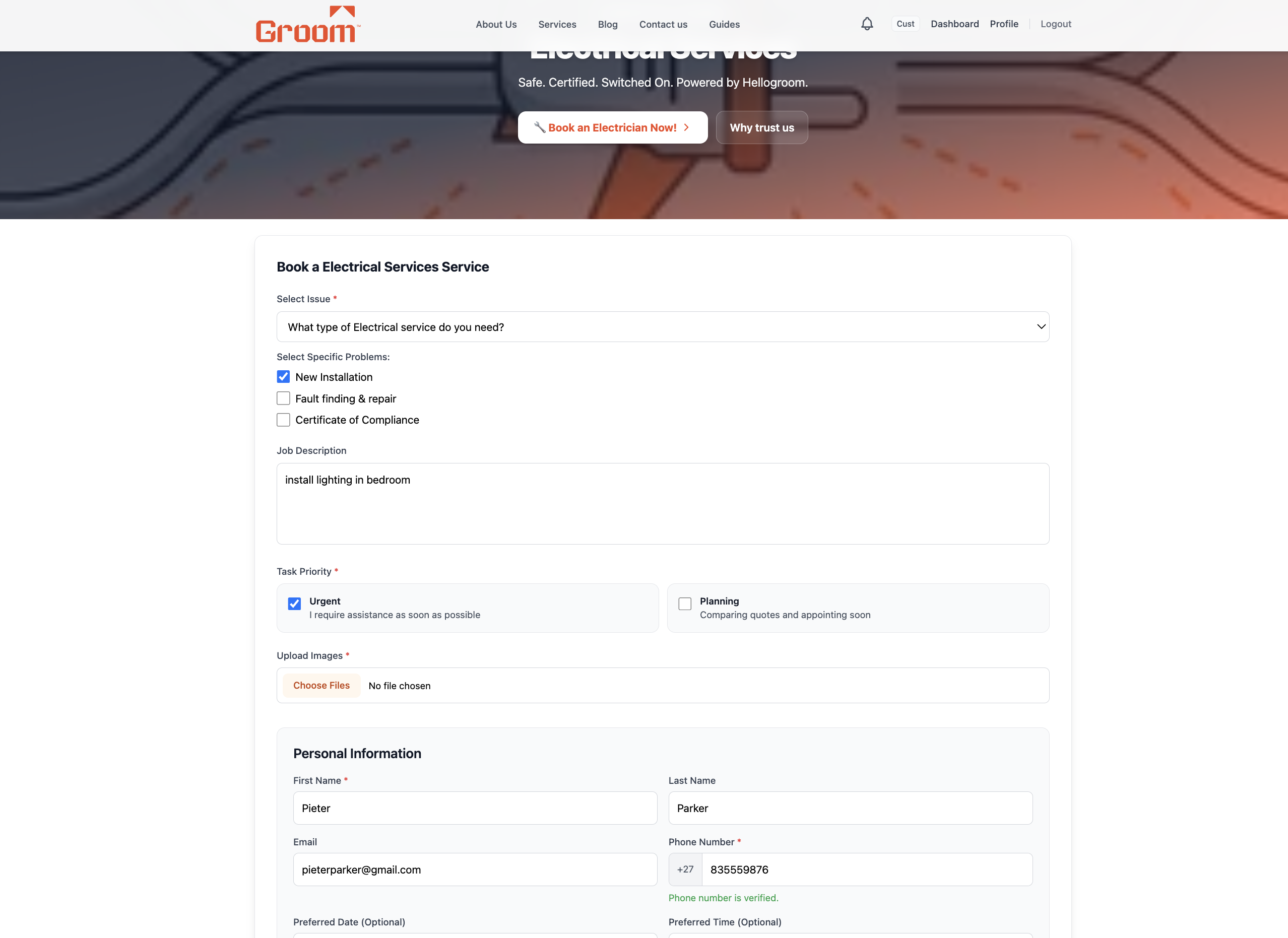
On the service page, answer the question about your specific issue from the dropdown.
Select the type of problem, then write a clear description of what needs to be done in the text box. The more detail you give, the better the offers you'll receive.
Tip: Adding photos of the problem (leaking pipe, dirty carpet, etc.) helps SPs give a more accurate price.
💡 Tip: You can upload up to 5 photos.
Job description is complete.
Fill In Your Address & Contact Info
5 / 15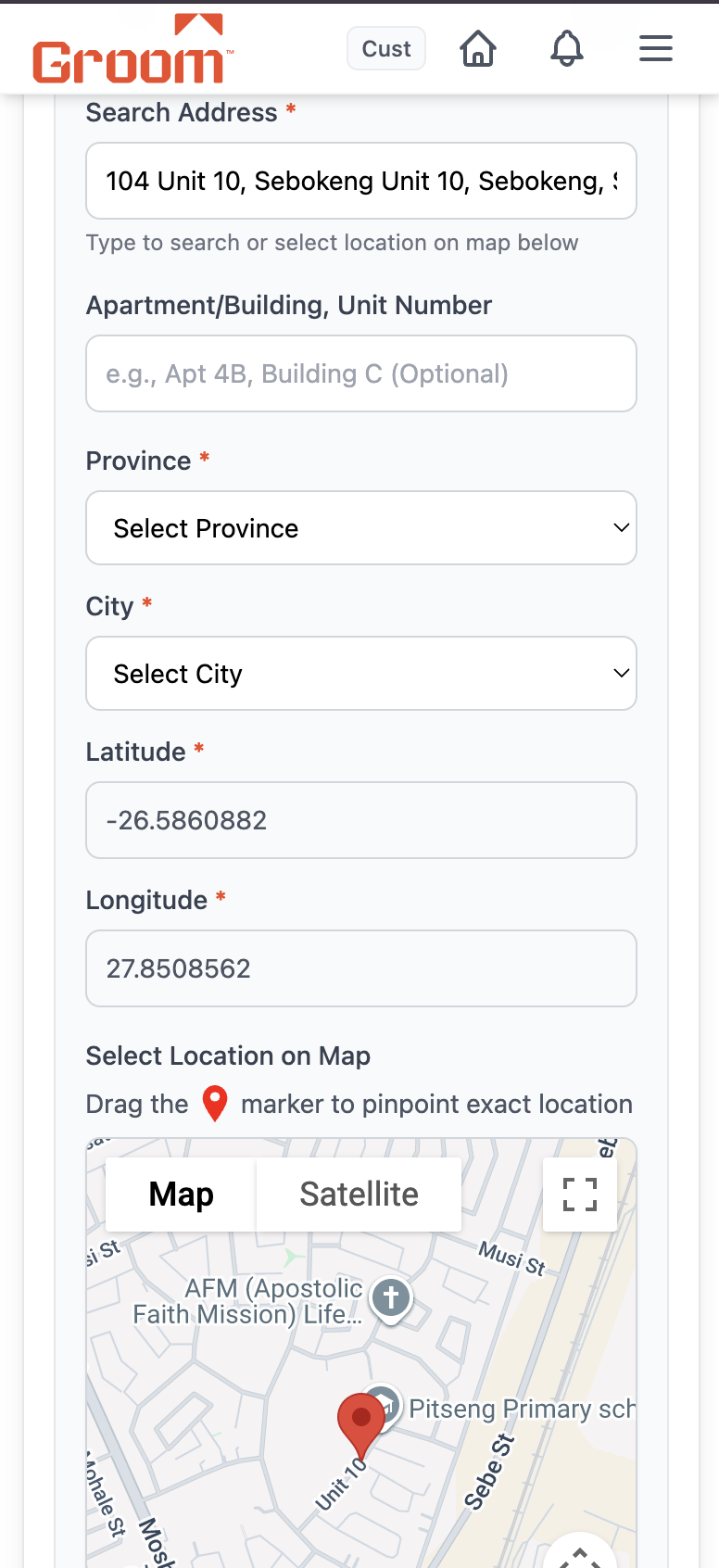
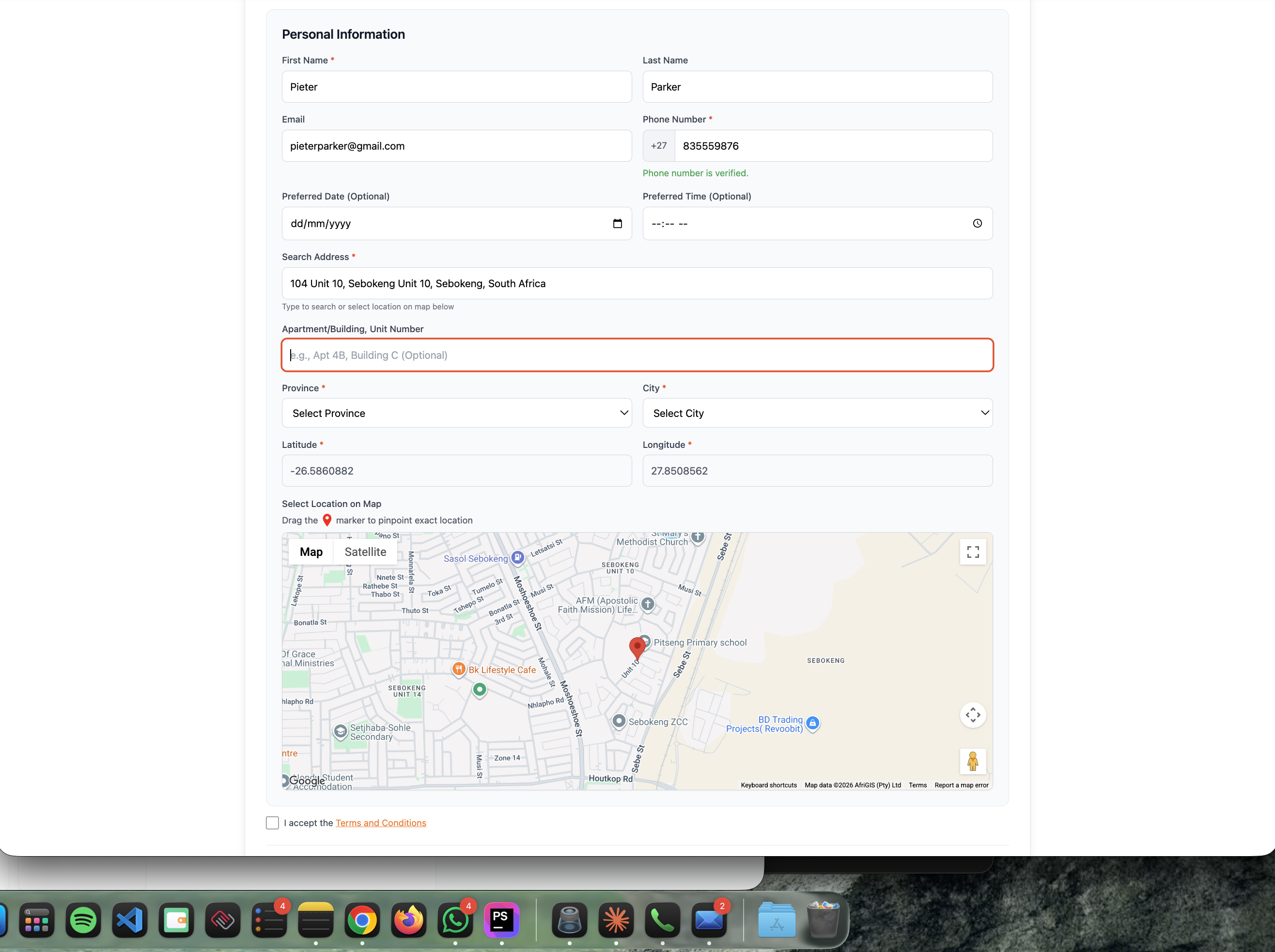
What to do
Scroll down on the booking form and fill in the address where the work needs to be done.
Enter your full address, select your Province and City. Add a preferred date and time if you have one. Make sure your phone number is correct — it must match your verified number.
Your address determines which service providers near you can see your job.
All fields filled. Ready to submit.
Submit Your Job
6 / 15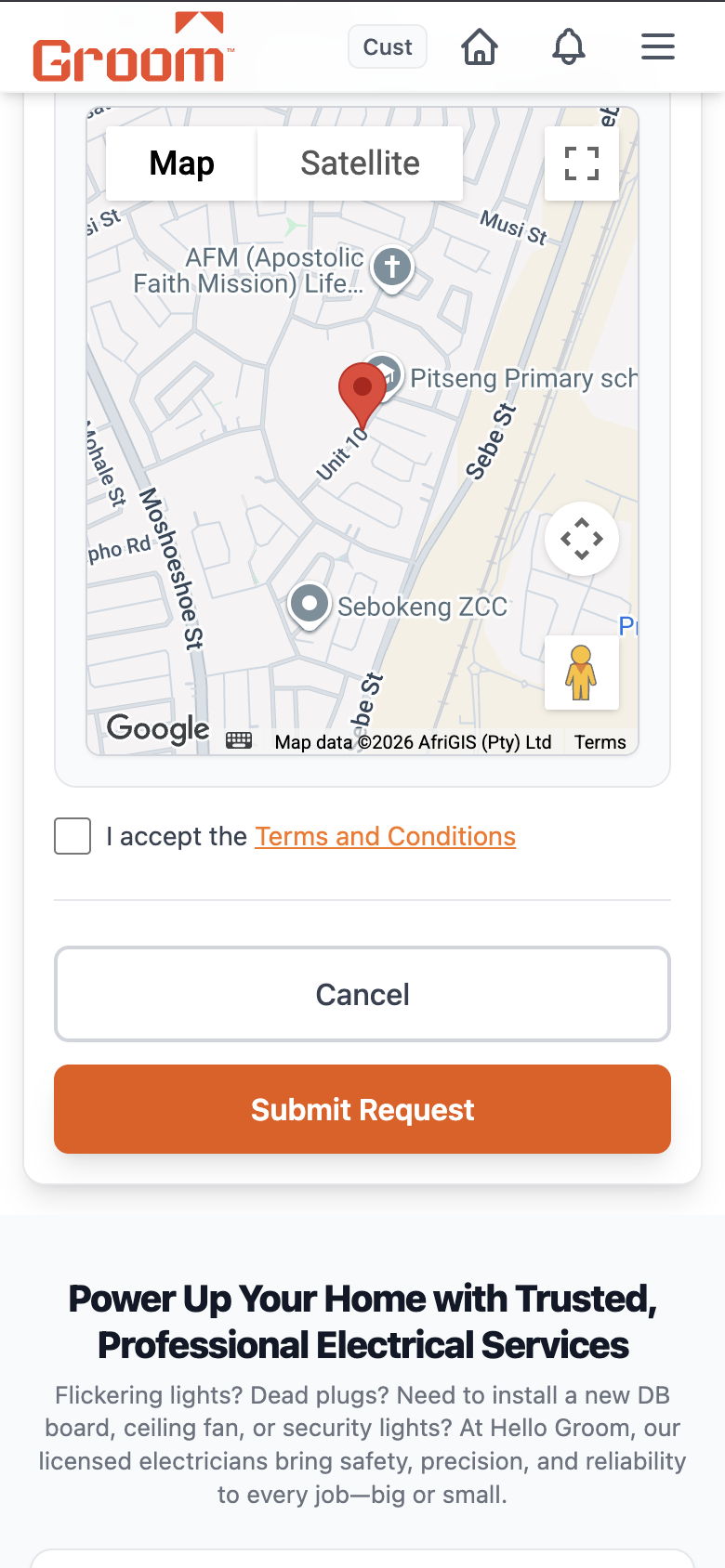
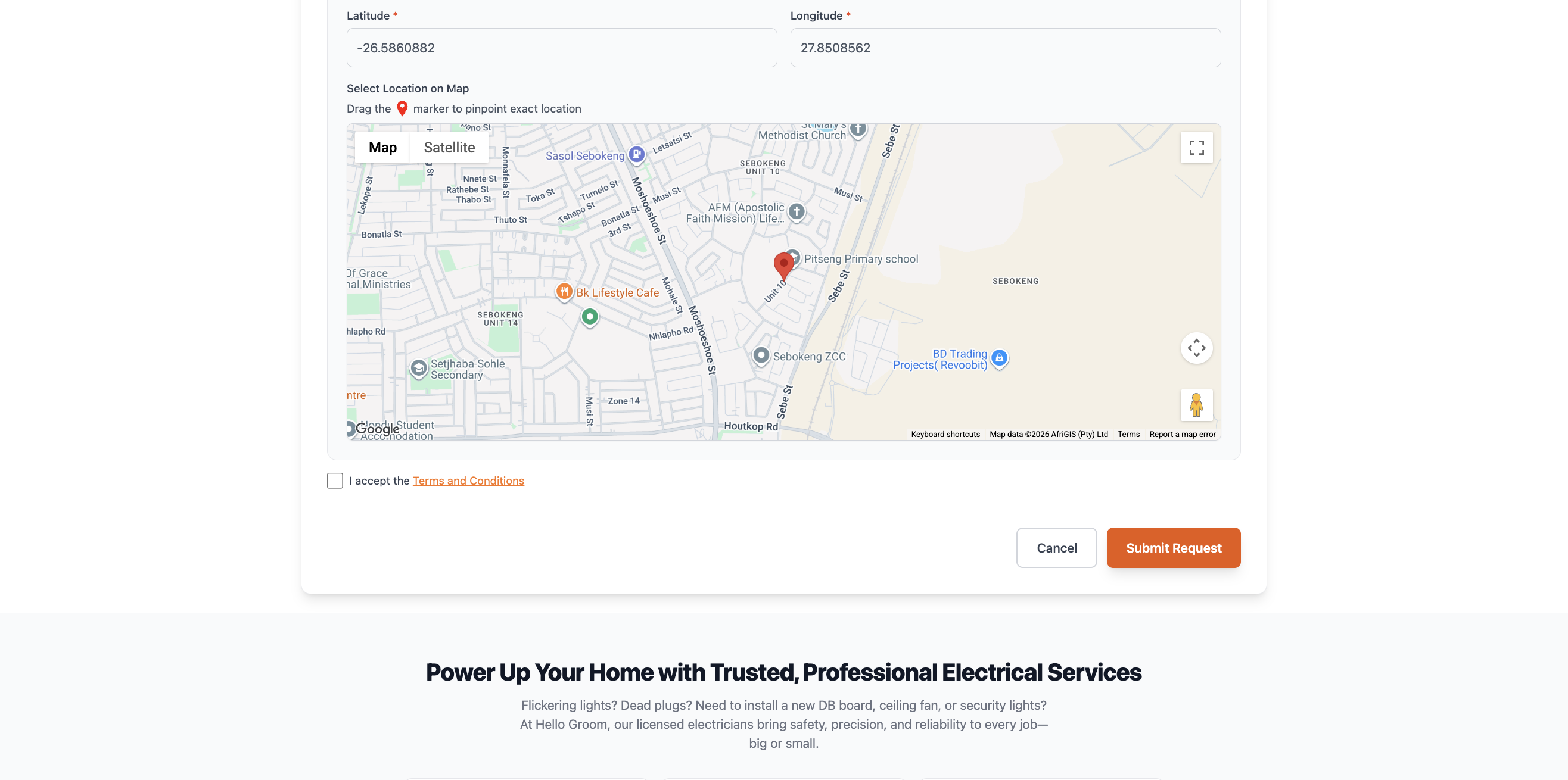
What to do
Tick the Terms & Conditions box, then tap the red "Submit" button at the bottom.
Your job is now live and visible to nearby service providers. You'll see a success popup and be redirected to your dashboard automatically.
✅ No payment is taken yet. You only pay after accepting a specific SP's offer.
Dashboard opens showing your job in "Open" status.
Your Job is Live — Offers Coming In
7 / 15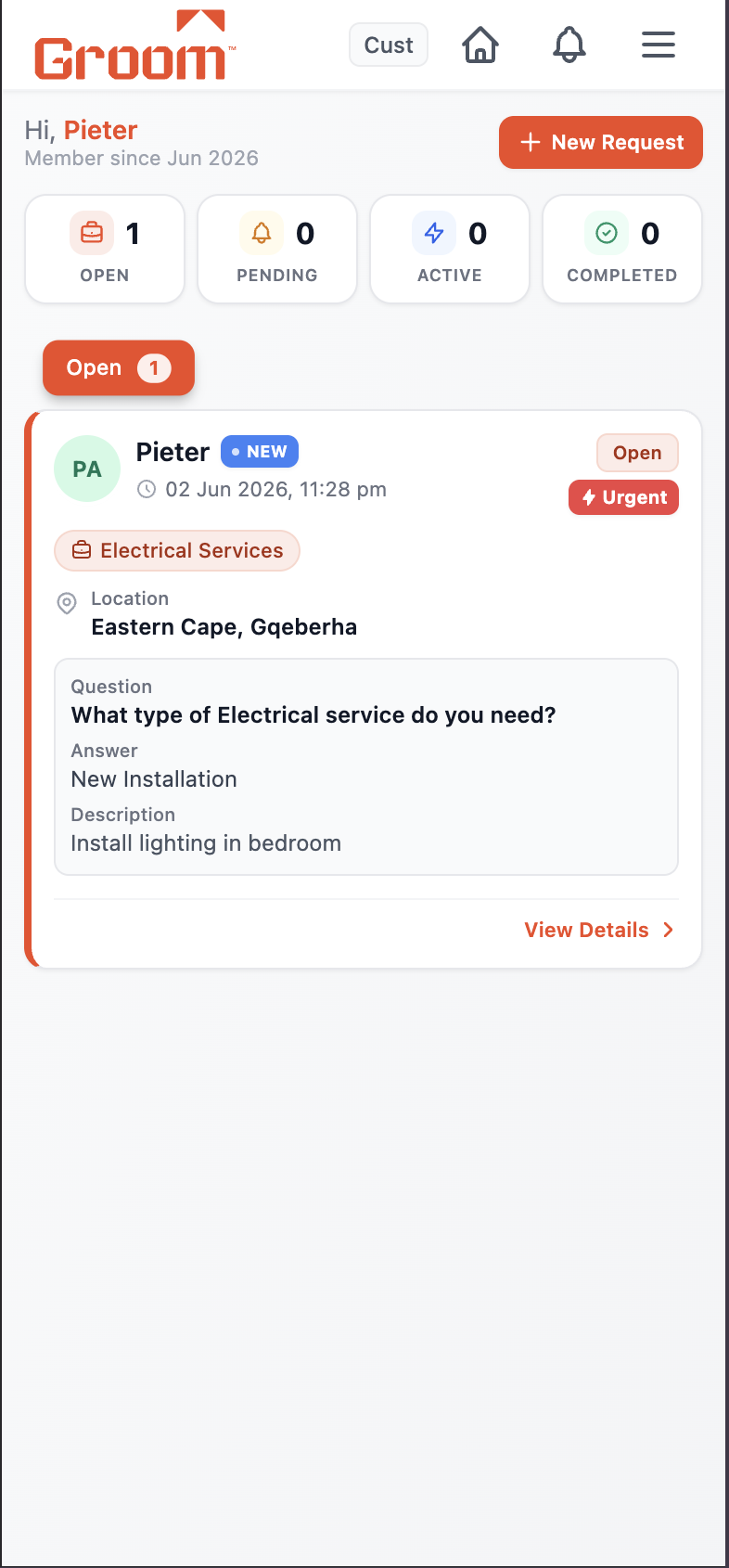
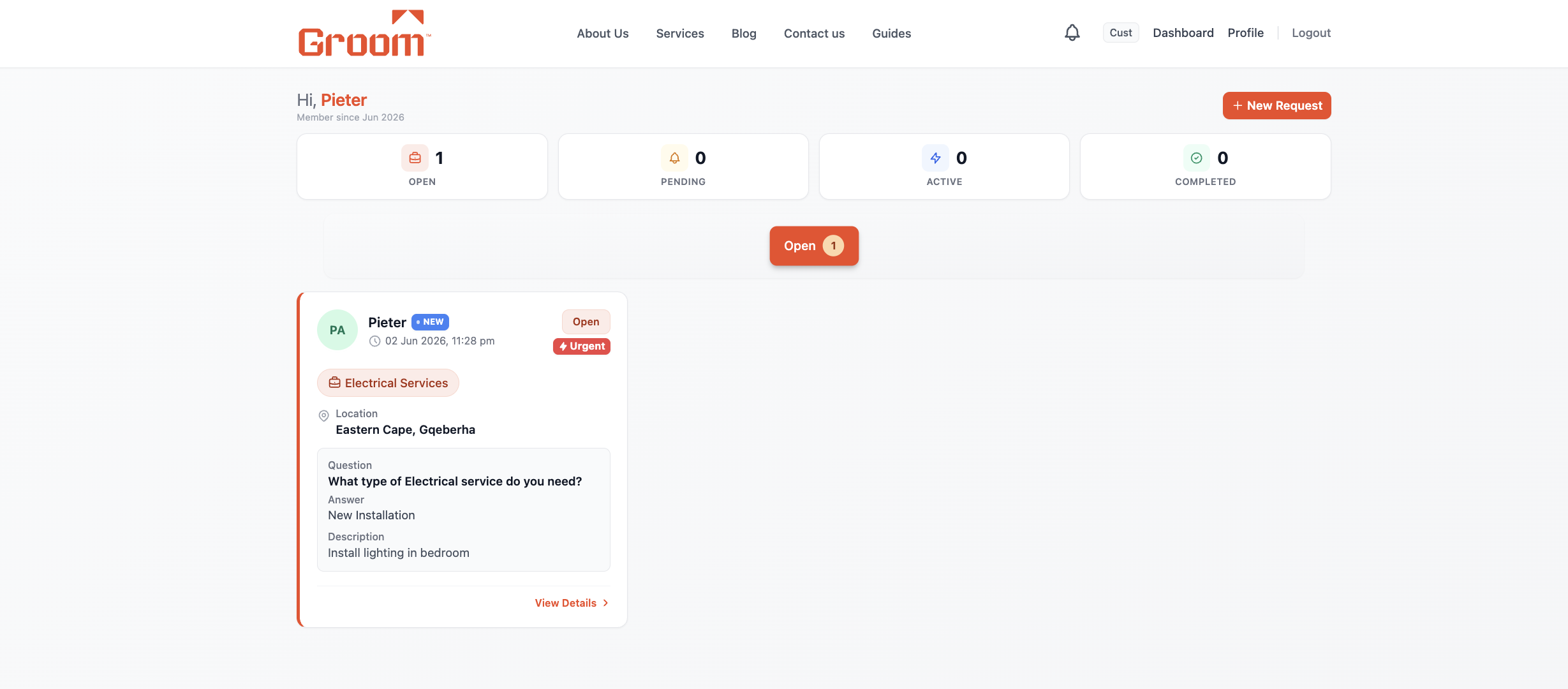
What to do
Open your Dashboard. Your job appears with a yellow "Open" badge.
Nearby verified service providers can see your job and will start sending offers. You'll receive a notification (push or SMS) for each new offer. This can happen within minutes.
Only admin-approved service providers in your area can see your job.
You start receiving offer notifications.
Review the Offers
8 / 15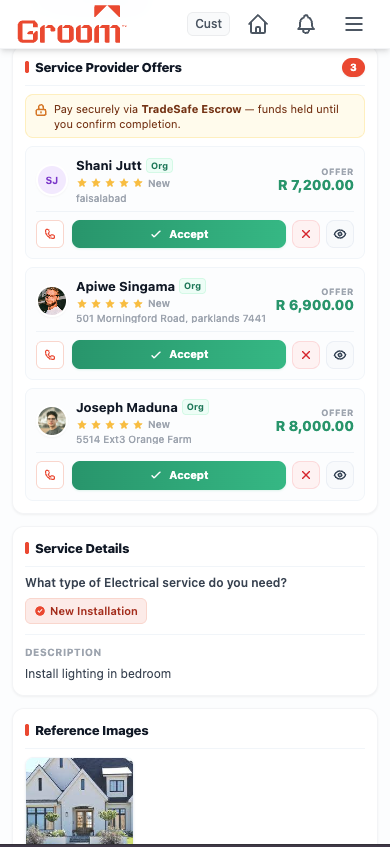
What to do
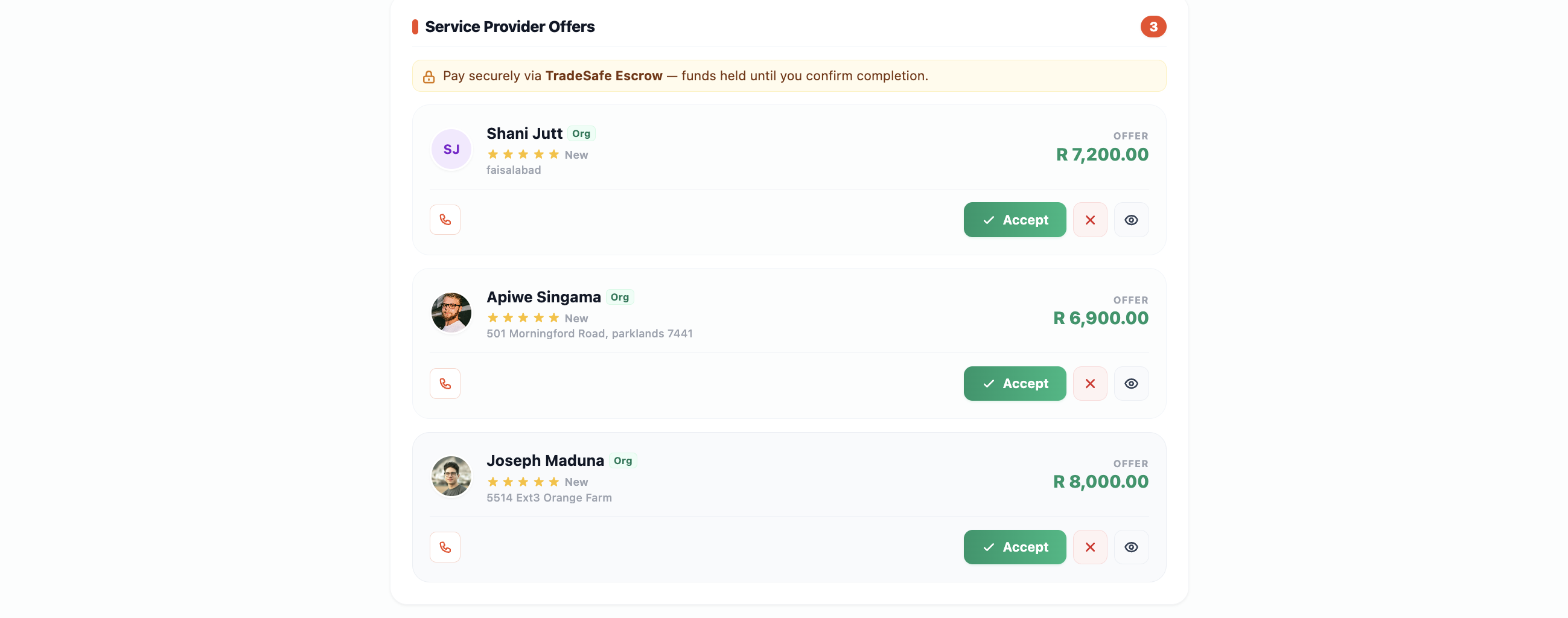
Tap on your job, then scroll to the "Offers" section to see who has bid.
Each offer shows the SP's name, quoted price, and their message to you. Tap their name to view their full profile — ratings, reviews, verified documents, and references.
Don't rush. Compare at least 2–3 offers. Cheapest isn't always the best choice.
💡 Tip: Check the SP's profile for their ratings and verification badges before deciding.
You pick the best offer.
Accept an Offer
9 / 15What to do
Tap "Accept" on the offer you want, then confirm in the popup.
The other offers are automatically declined. The SP gets a notification that you've chosen them. Your job status changes to "Planned" and you're taken to the payment screen.
Once you accept, you're committed to this SP. Choose carefully.
Redirected to TradeSafe payment.
Pay Securely via TradeSafe
10 / 15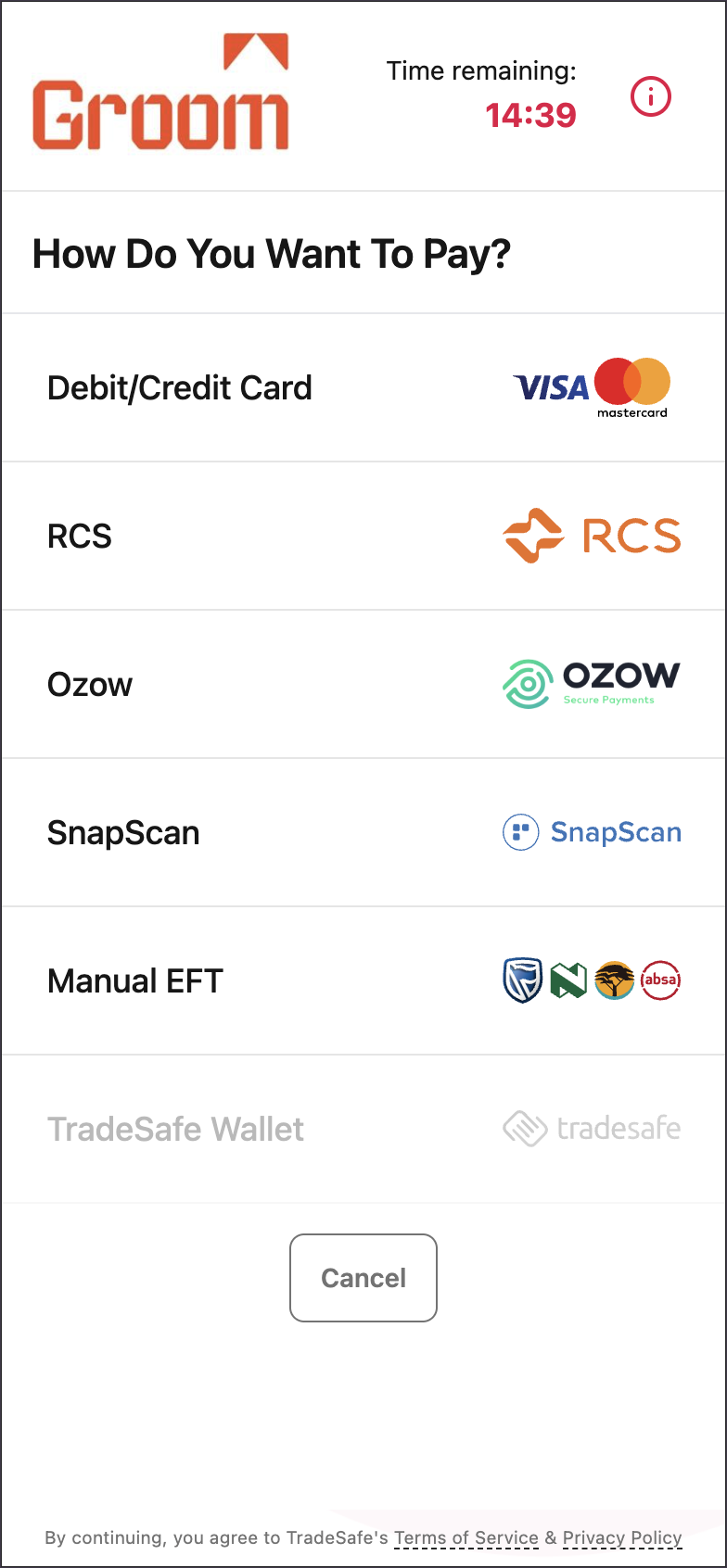
What to do
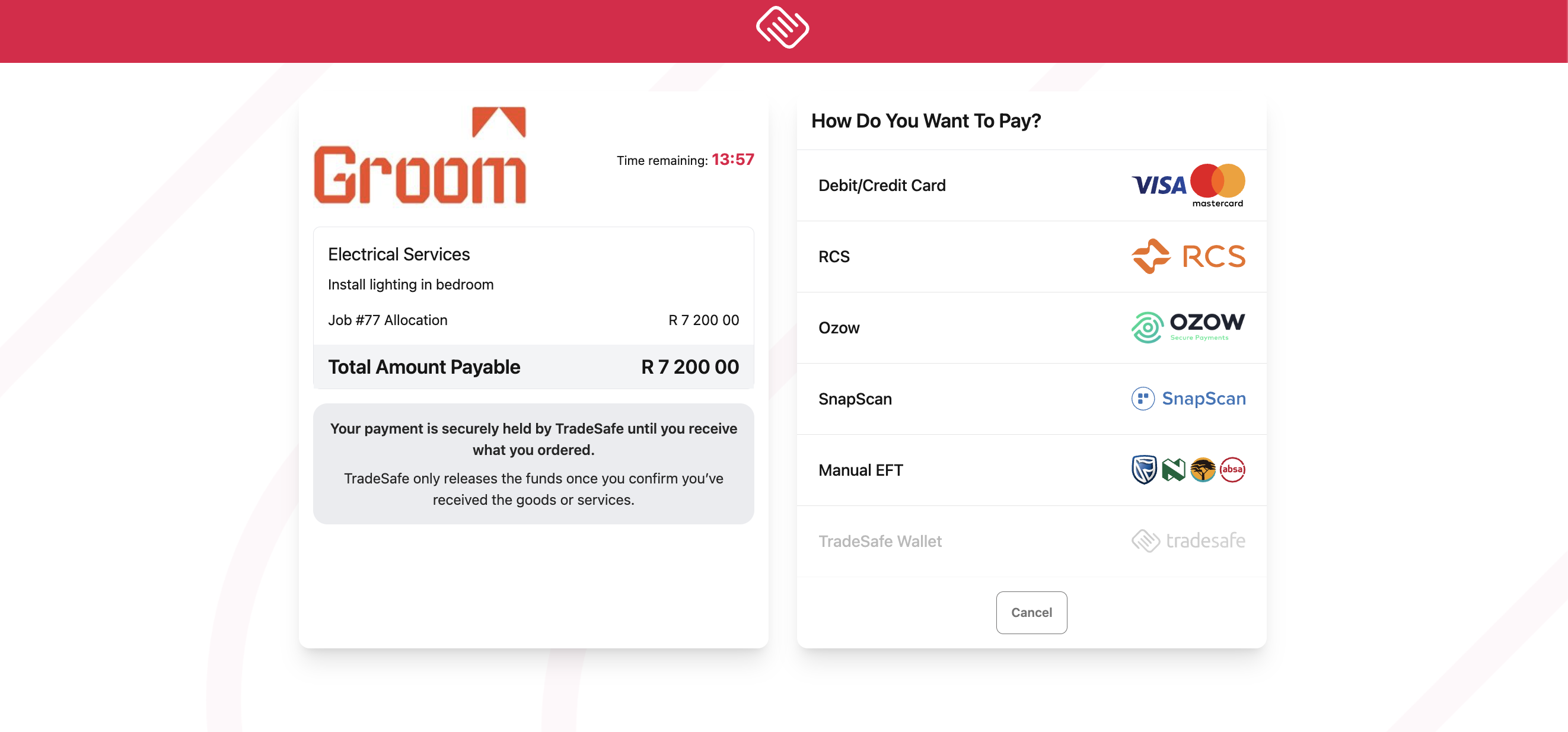
On the TradeSafe checkout screen, choose your payment method and complete the payment.
Options: Credit/Debit Card, Instant EFT, or EFT Bank Transfer. After paying you'll return to HelloGroom. Your money is now held by TradeSafe (escrow) — NOT yet with the SP.
🔒 TradeSafe escrow means your money is held safely until YOU confirm the work is done. You are fully protected.
💡 Tip: A payment confirmation email is sent to you immediately.
Payment done. Job status: "Planned".
SP Arrives — Tap "Confirm Start"
11 / 15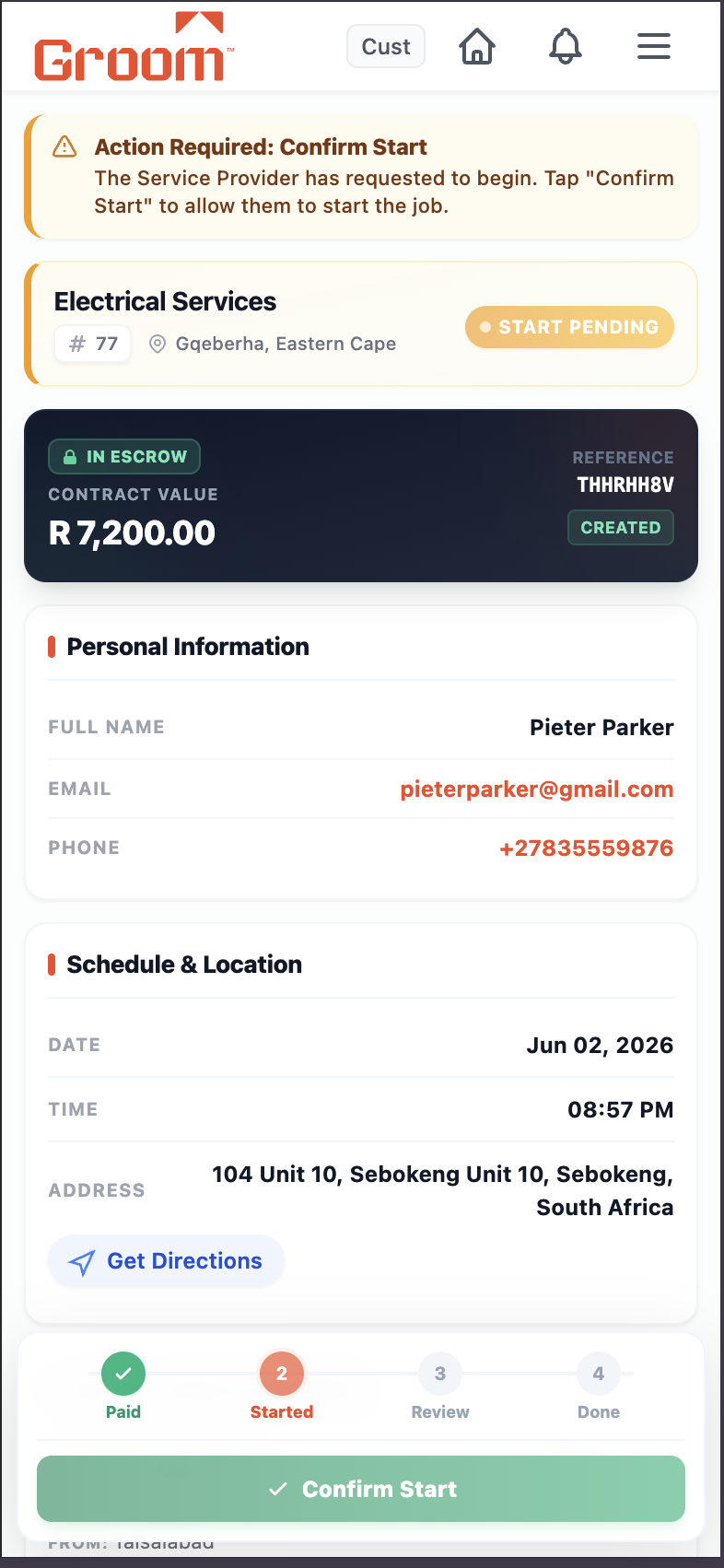
What to do
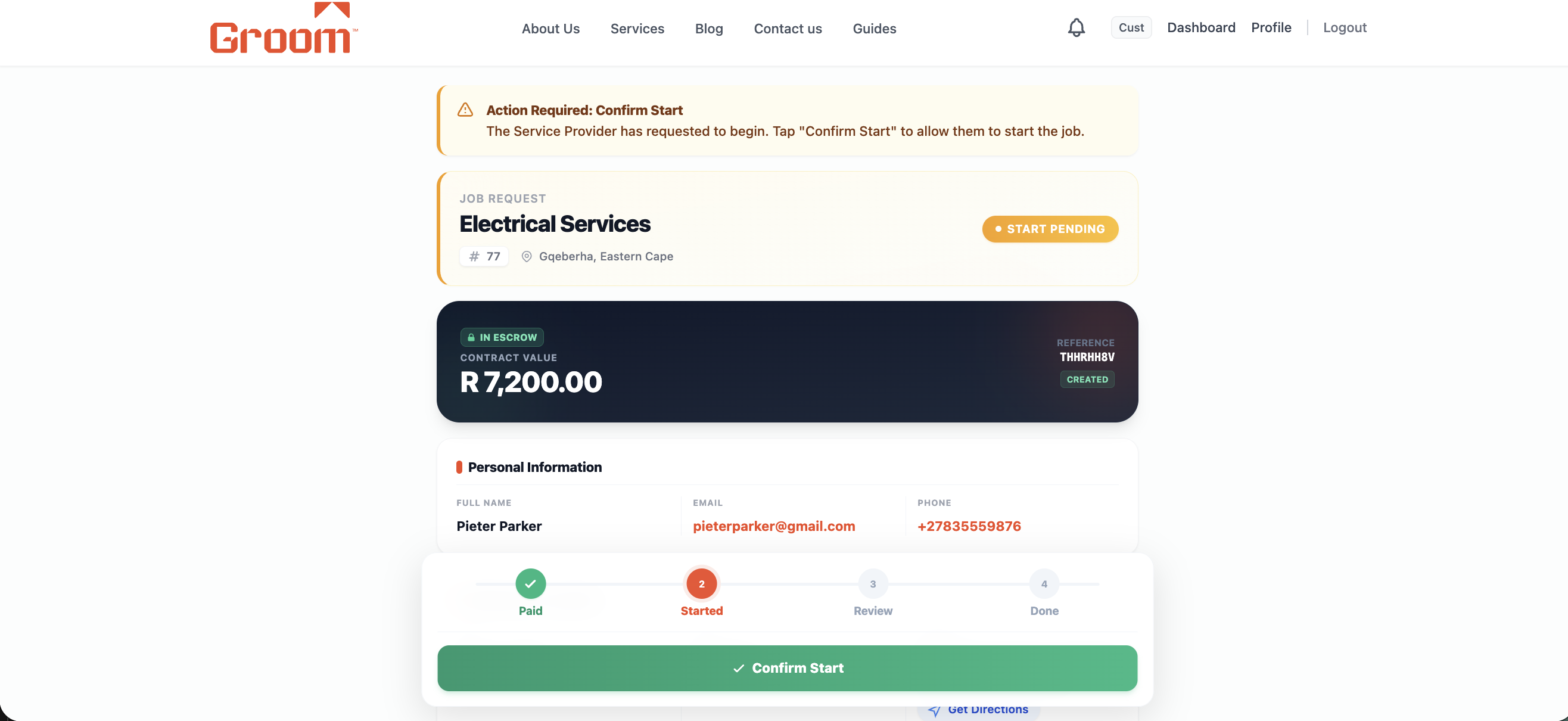
When the SP arrives and taps "Request Start" on their end, your job shows "Start Pending". Go to your dashboard and tap "Confirm Start".
Find your job in the dashboard (yellow "Start Pending" status), tap "View Job", then tap the green "Confirm Start" button. This tells the SP they can begin.
👆 Only confirm start when the SP is physically at your location and you are both ready to begin.
Job status changes to "In Progress".
Work is In Progress
12 / 15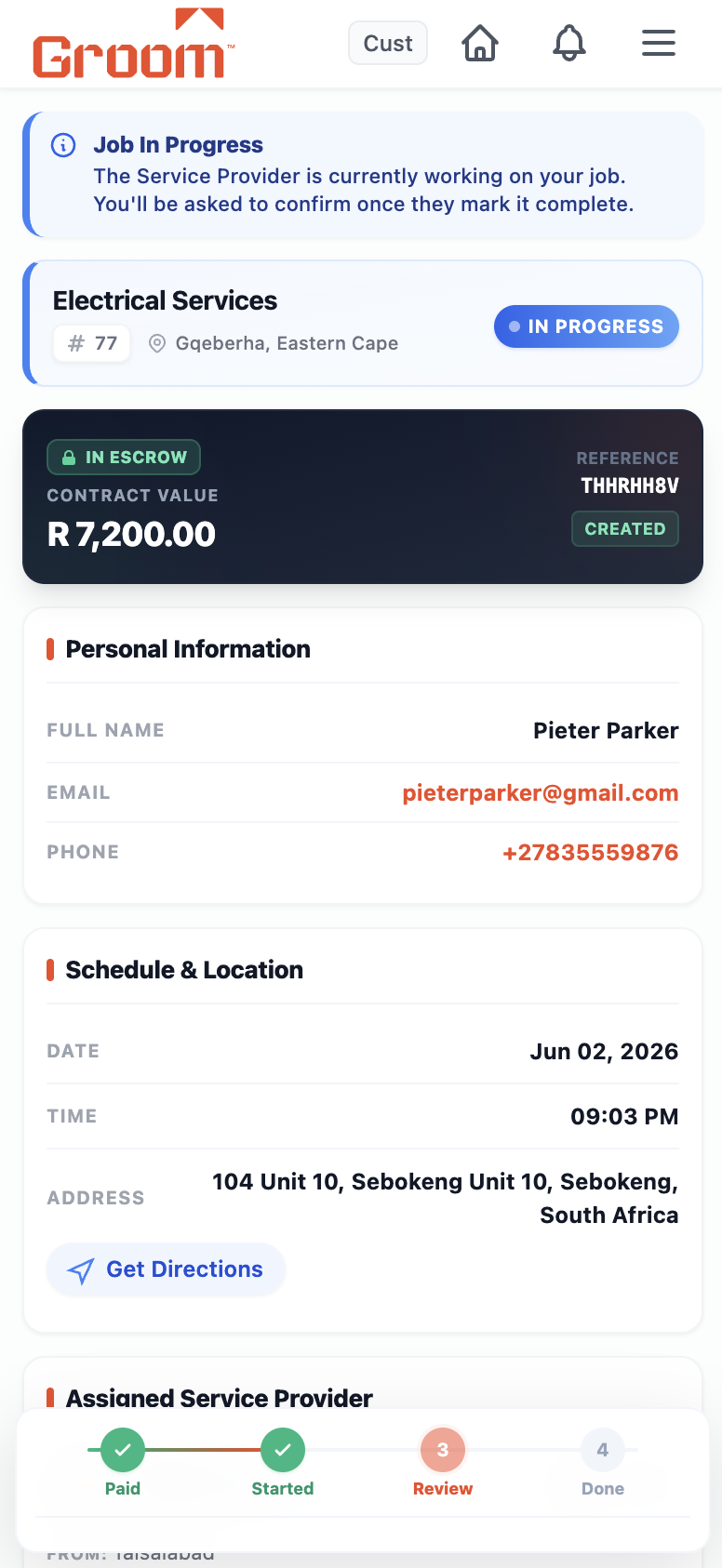
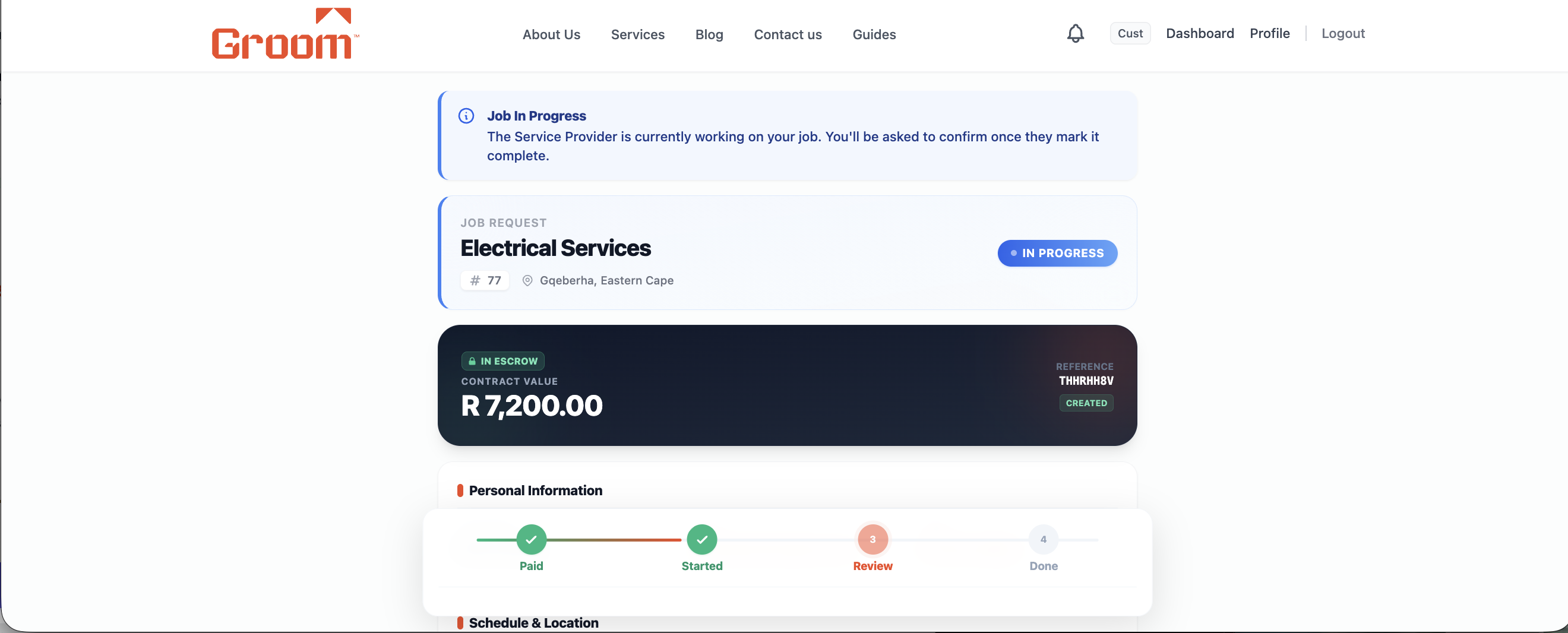
What to do
No action needed. Let the service provider do their work.
Your dashboard shows "In Progress". You can open the job at any time to see the status. If you have questions during the job, speak directly with the SP on-site.
Stay available on-site so you can review the work as it progresses.
SP completes the work and marks it done.
SP Marks Done — Review the Work
13 / 15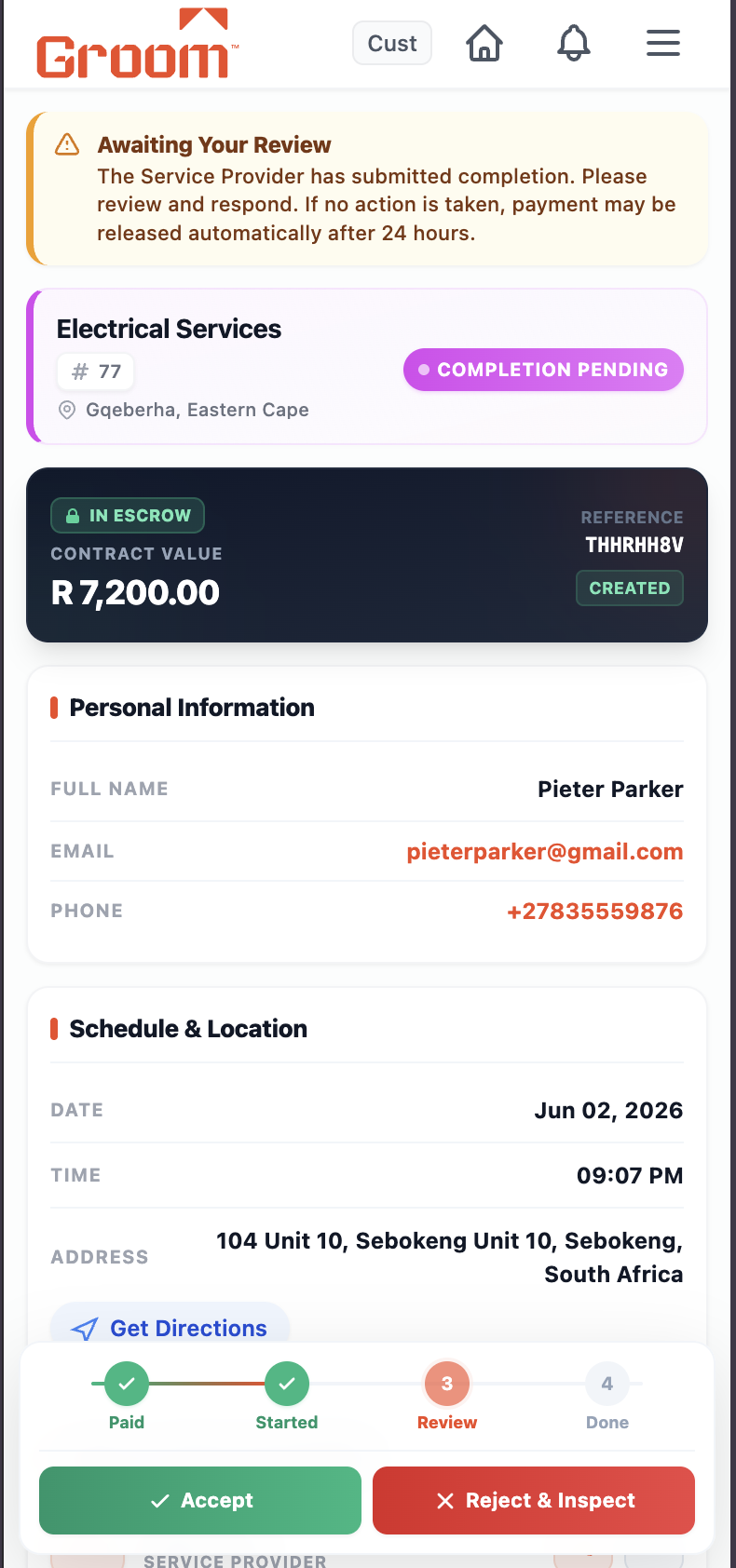
What to do
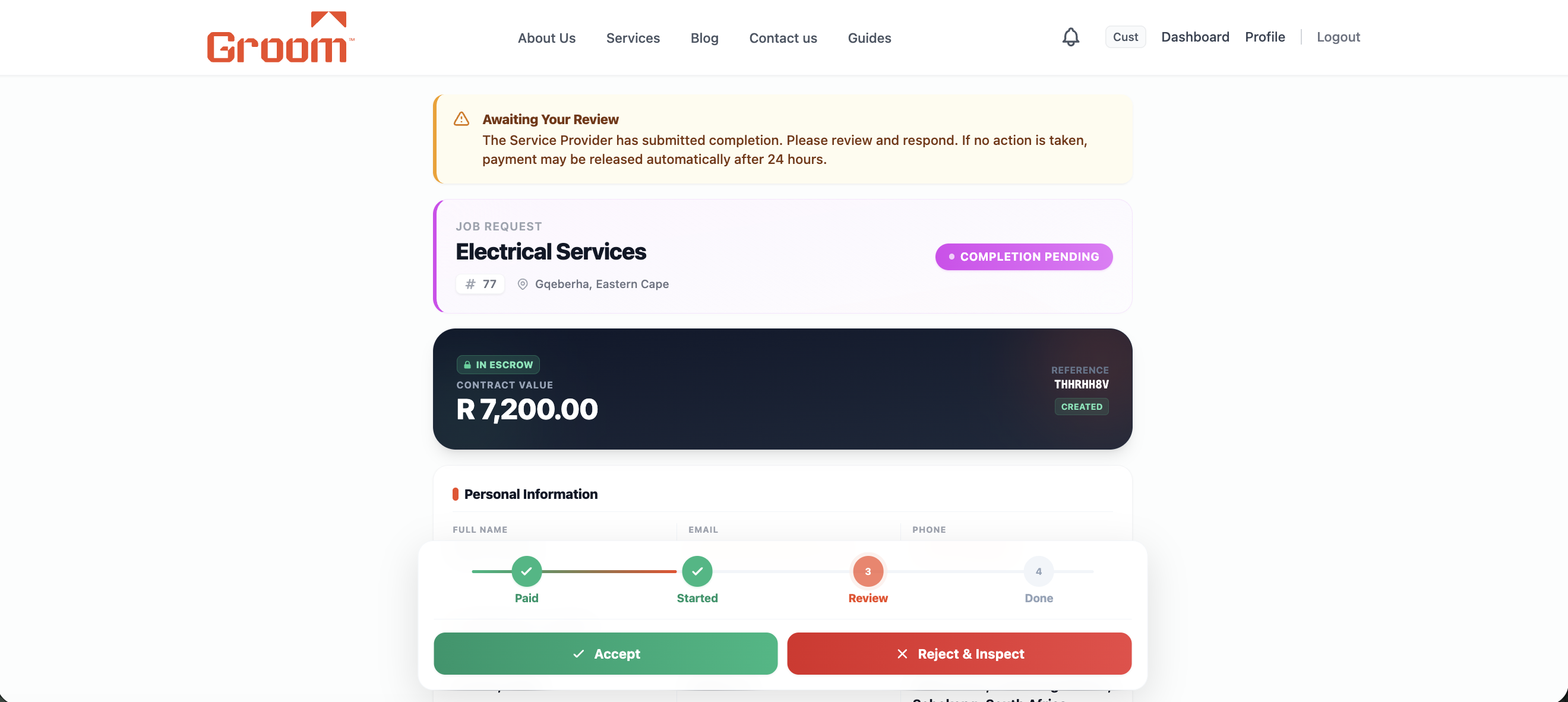
Your job shows "Completion Pending". Inspect every part of the work before doing anything.
Walk through the completed work. Check every area. Ask the SP any questions. Only proceed to confirmation when you are fully satisfied.
⚠️ Do NOT tap "Confirm" if you are unhappy with the work. Use "Raise Dispute" — your money stays in escrow until resolved.
💡 Tip: Minor issues? Ask the SP to fix them on-the-spot before you confirm.
You decide: Confirm or Dispute.
Confirm Completion
14 / 15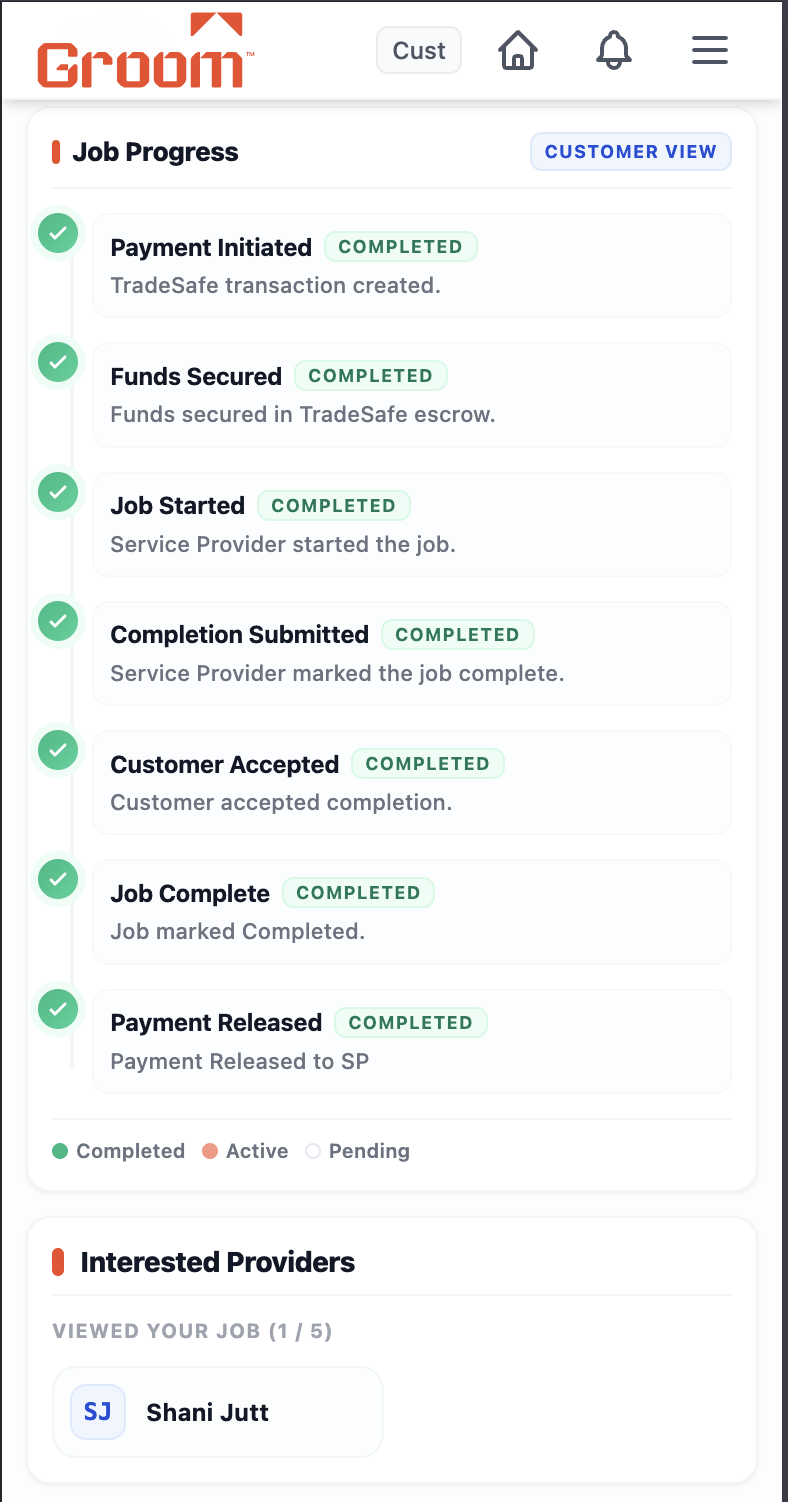
What to do
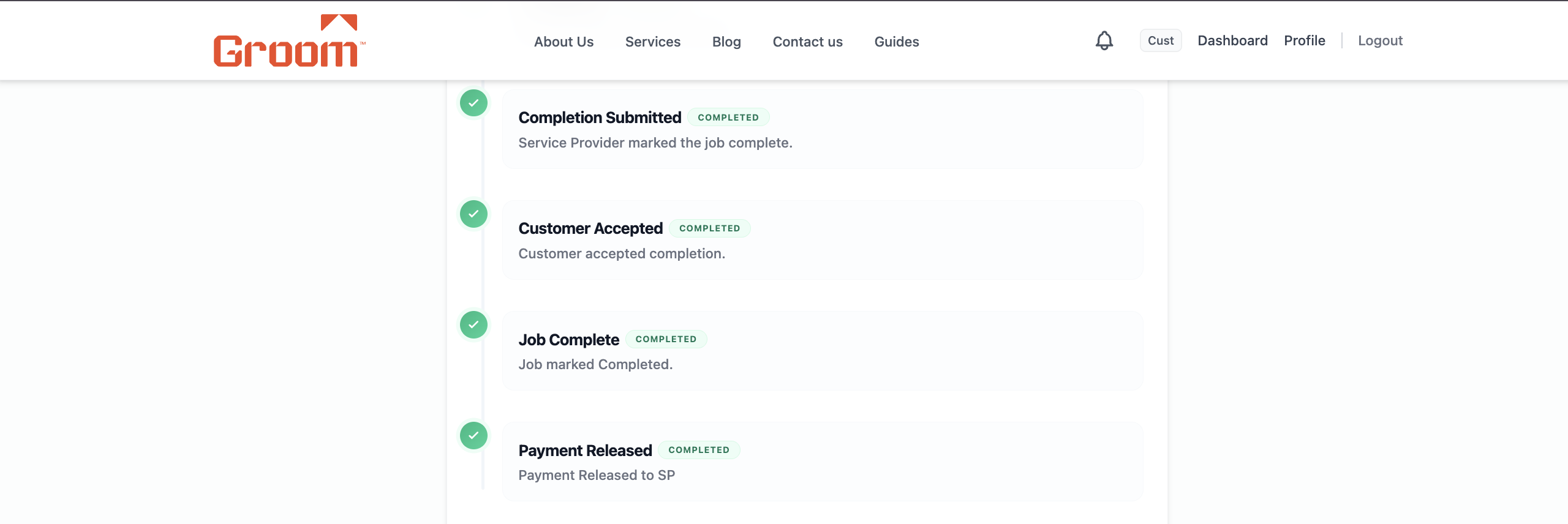
Tap "Accept Completion" on the job page. Confirm in the popup.
This releases the payment from TradeSafe to the service provider. The job is marked "Completed". This action cannot be undone — only confirm when you are 100% happy.
Payment is released the moment you confirm. Only do this if you are satisfied.
Payment released. Job marked "Completed".
🎉 Job Complete — Leave a Review
15 / 15What to do
Your dashboard shows a green "Completed" badge. Optionally leave a star rating and review.
Well done! The job is finished and the SP has been paid. You'll be prompted to rate the provider. Your honest review helps other HelloGroom customers make better decisions.
Leaving a review takes 30 seconds and genuinely helps good SPs grow their business.
💡 Tip: Need another service? Go back to the home page and post a new job anytime.
Done! Your home is sorted. 🏠
Ready? Post Your First Job Now.
Thousands of South African homeowners trust HelloGroom. Join them.