Register as a Service Provider
1 / 15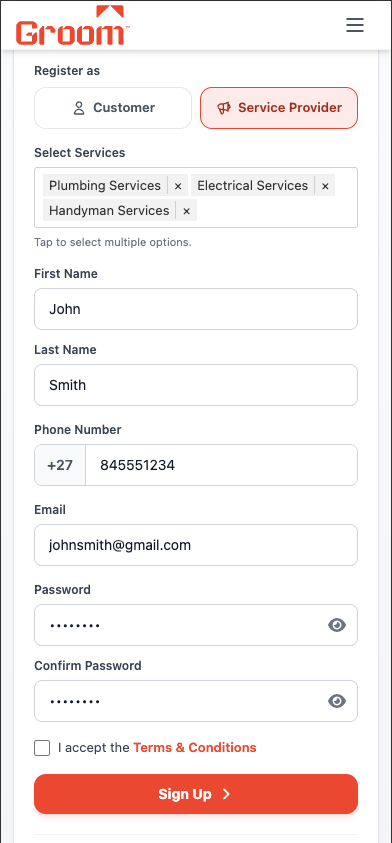
What to do
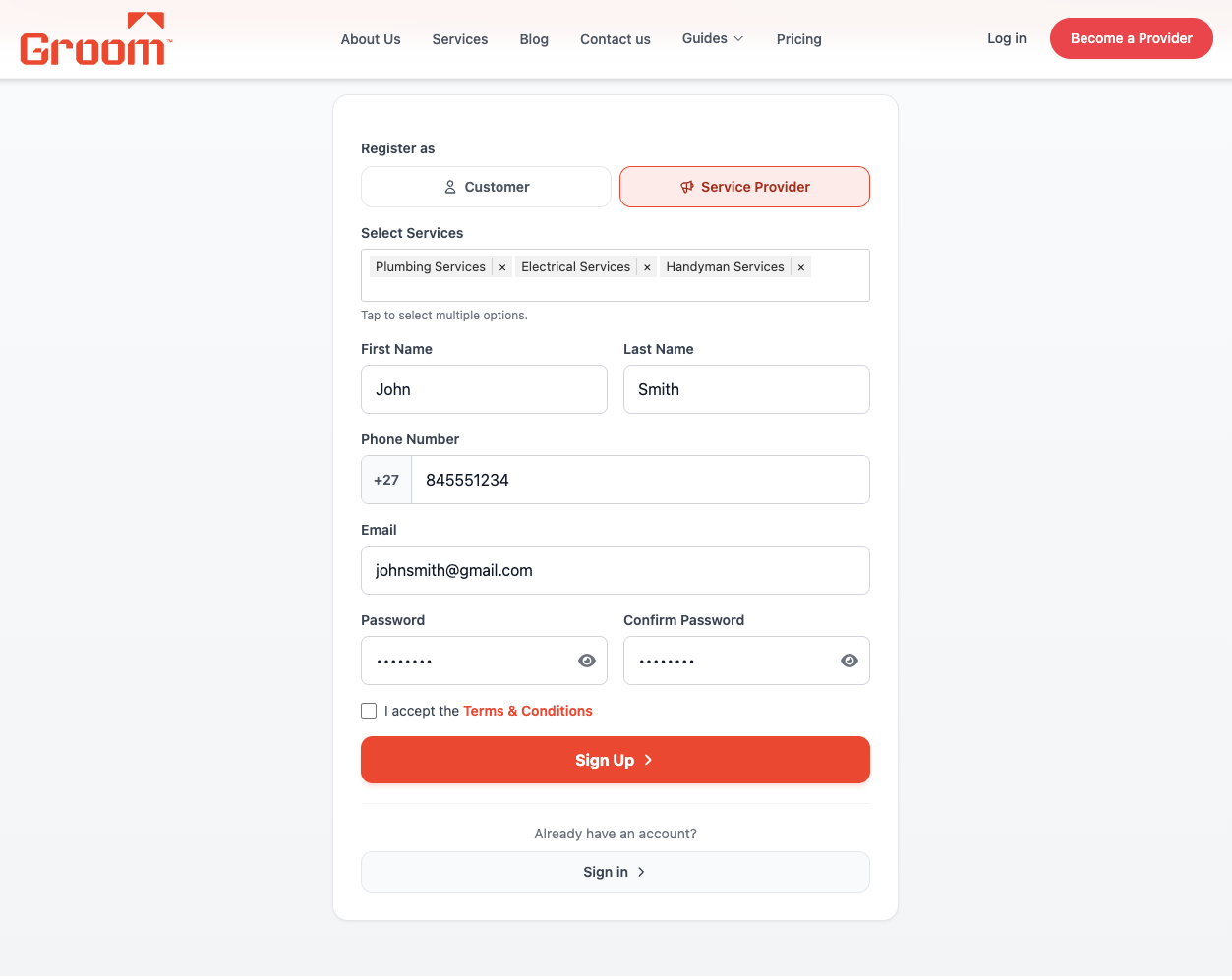
Go to hellogroom.co.za and tap "Become a Provider". Choose "Service Provider" on the registration form.
Enter your full name, email address, and a strong password. Tap "Register". You'll be logged in immediately and taken to your dashboard.
Make sure to choose "Service Provider" — this gives you access to the job feed, offer tools, and bank payout features.
💡 Tip: Use a professional email address — customers may see it on your profile.
Account created. You're in your SP dashboard.
Verify Your Phone Number
2 / 15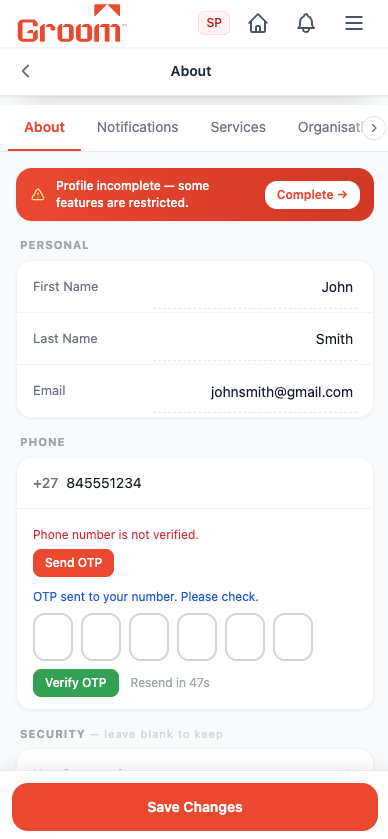
What to do
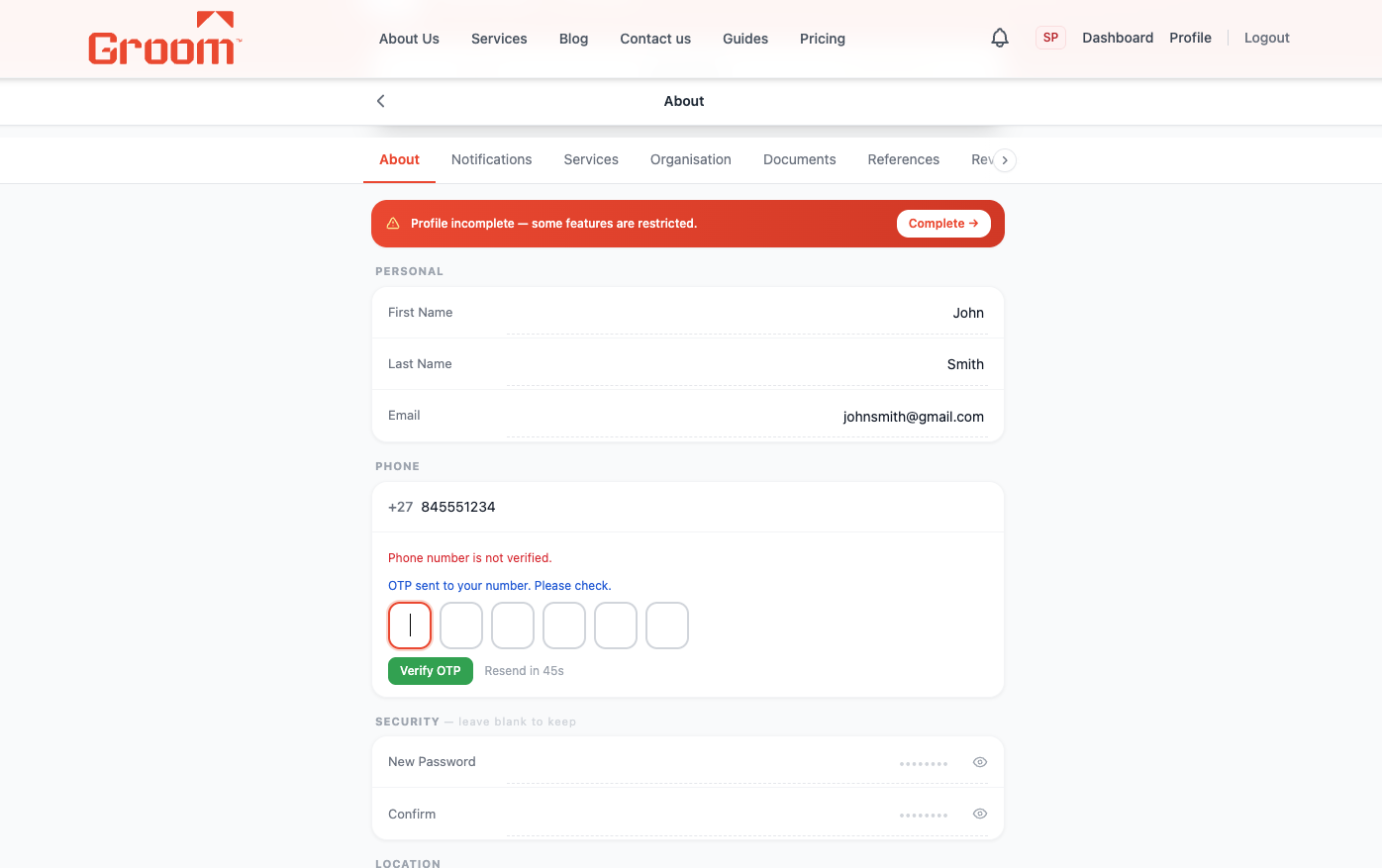
Go to Profile → tap "Verify Phone". Enter your SA mobile number, tap "Send OTP".
You'll receive a 6-digit SMS code. Enter it in the OTP box and tap "Confirm". A green tick shows your phone is verified.
⚠️ Phone verification is required to access the job marketplace. Jobs are hidden from unverified SPs.
💡 Tip: OTP expires in 5 minutes. Tap "Resend" if it doesn't arrive.
Green "Phone number is verified" message appears.
Upload Your ID Document
3 / 15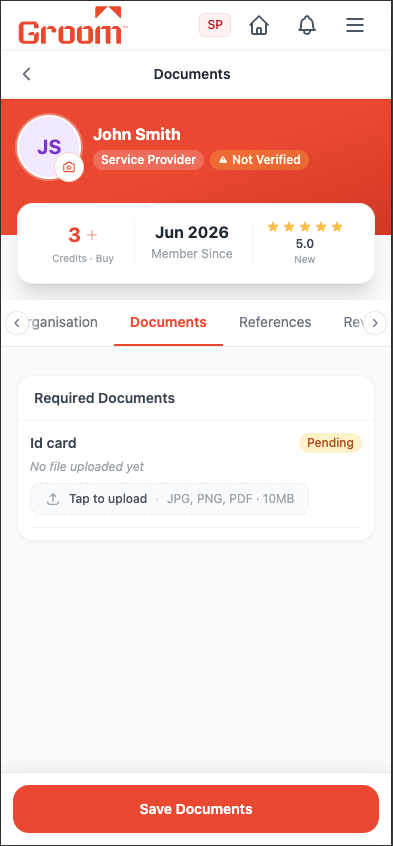
What to do
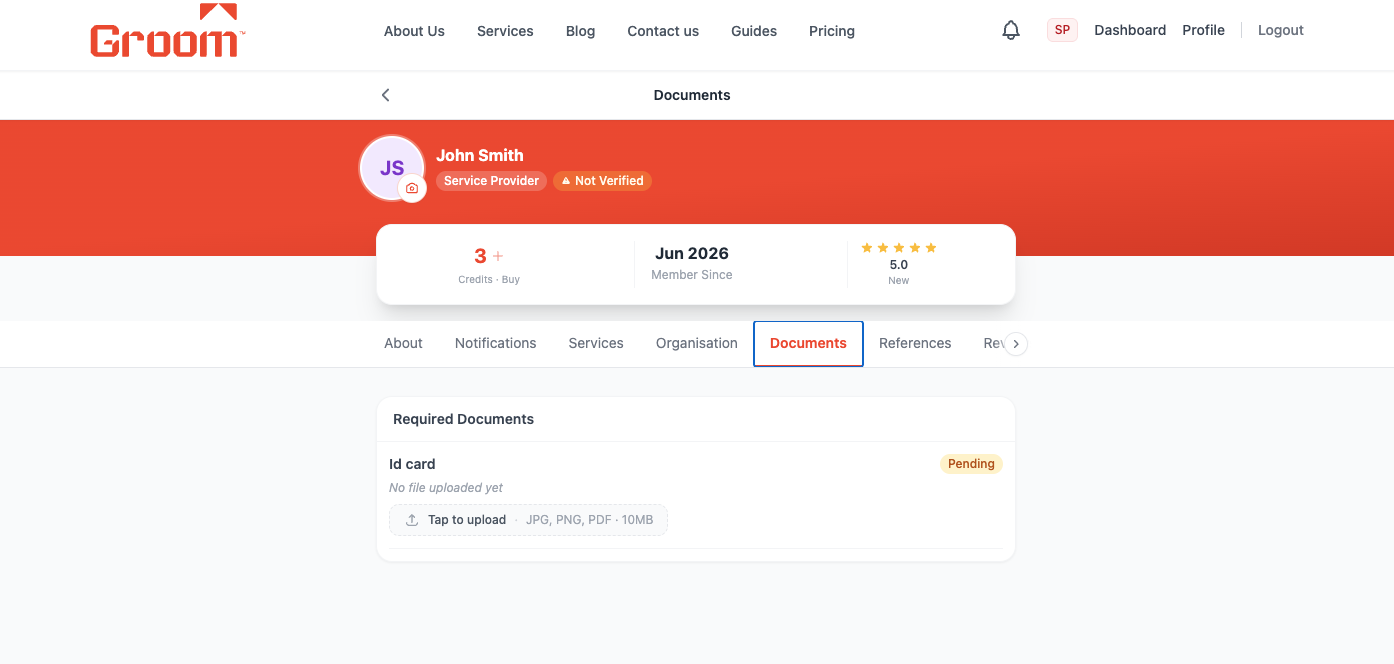
Go to Profile → Documents section. Tap "Upload ID" and choose your SA ID or passport photo.
Take a clear photo of your South African ID card or passport (both sides for ID cards). Upload it using the file picker. The photo must be clear and readable — blurry uploads will delay approval.
Your ID is verified by the HelloGroom team. It is never shared publicly.
💡 Tip: Good lighting + a flat surface = clear ID photo. Avoid glare and shadows.
ID document uploaded. Awaiting review.
Upload Company Documents (Mandatory)
4 / 15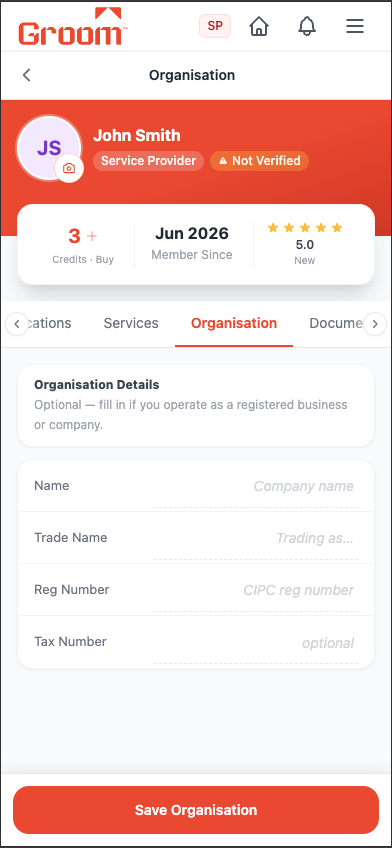
What to do
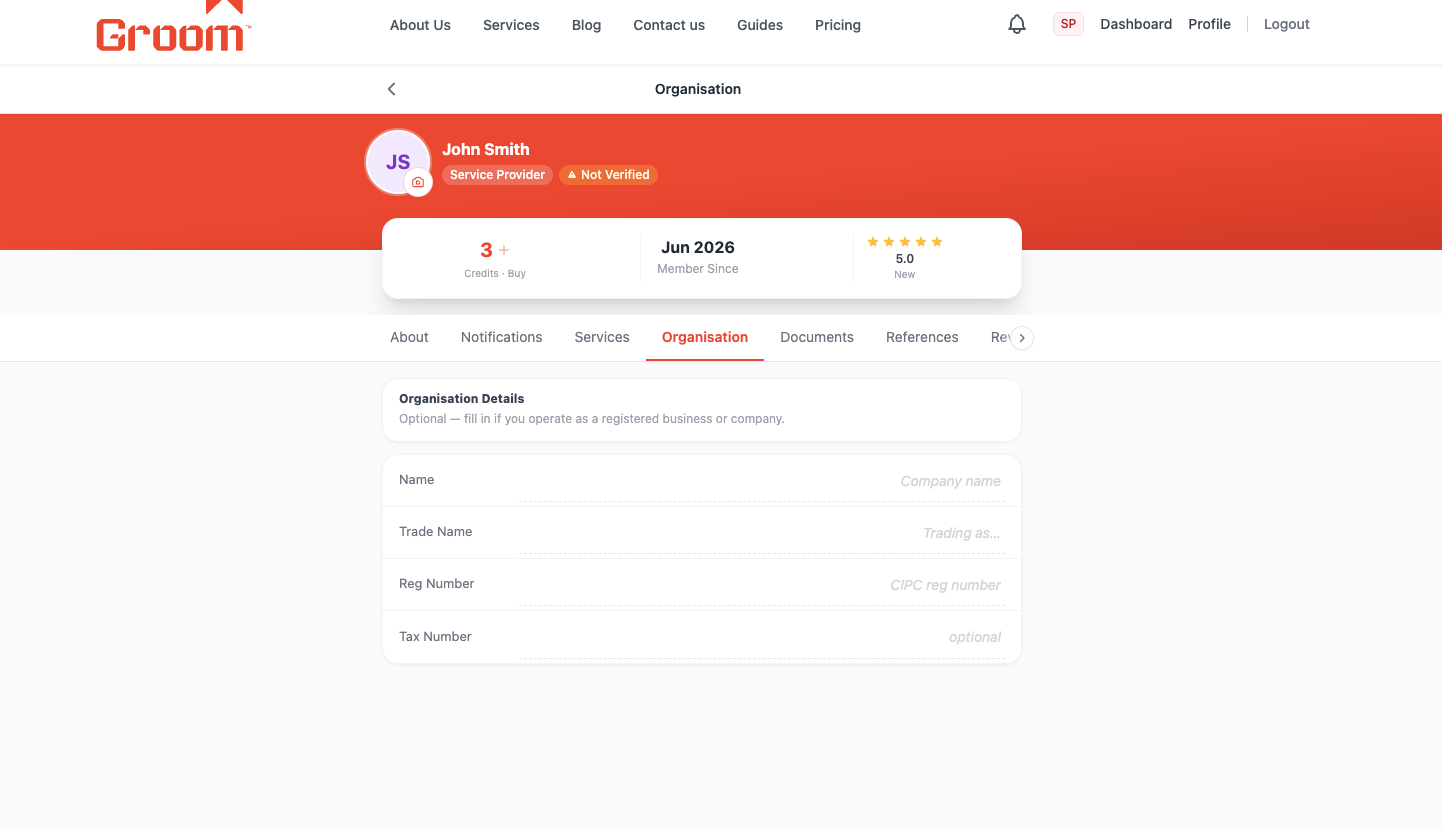
In the Documents section, upload your business registration or CK document if you operate as a company.
Registered businesses get an "Org" verification badge on their profile. This increases customer trust significantly and often leads to more accepted offers.
No company? Skip this step — individual providers are welcome. The badge just adds extra credibility.
💡 Tip: Upload your CIPC registration certificate or CK document.
Company docs uploaded. Organisation badge pending.
Add Your Bank Account for Payouts
5 / 15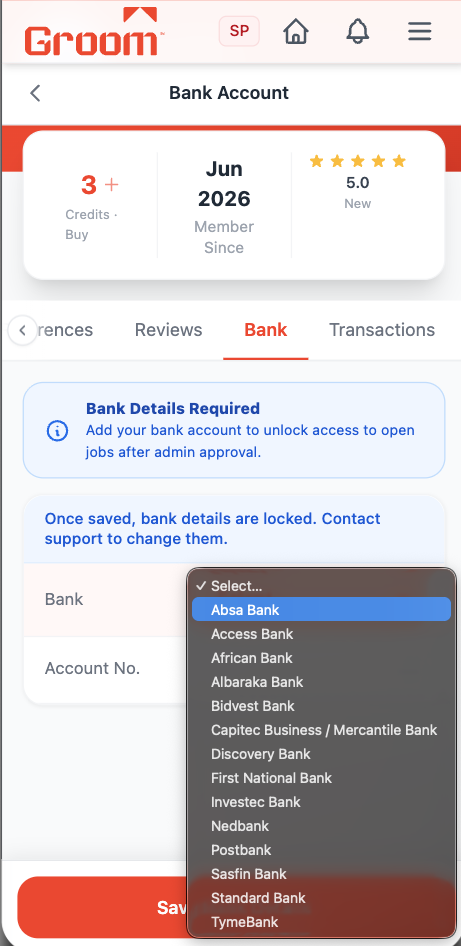
What to do
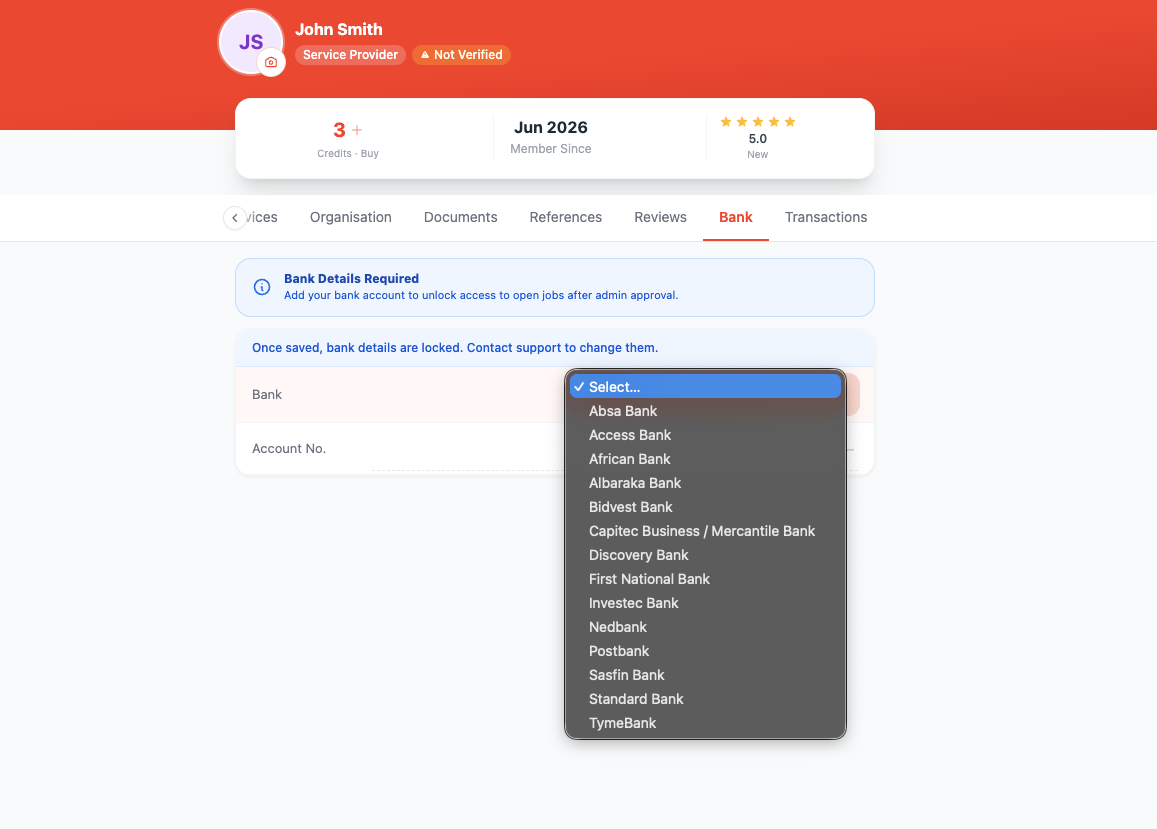
Go to Profile → Bank Details. Enter your South African bank account details.
You need: Bank Name, Account Number, Account Type (Cheque or Savings), and Branch Code. This is the account TradeSafe will pay into after each completed job.
🔒 Your bank details are stored securely and only used for TradeSafe payouts. They are never shown publicly.
💡 Tip: Double-check your account number — incorrect details will delay or fail your payout.
Bank details saved. Payouts are enabled.
Select Your Services & Service Area
6 / 15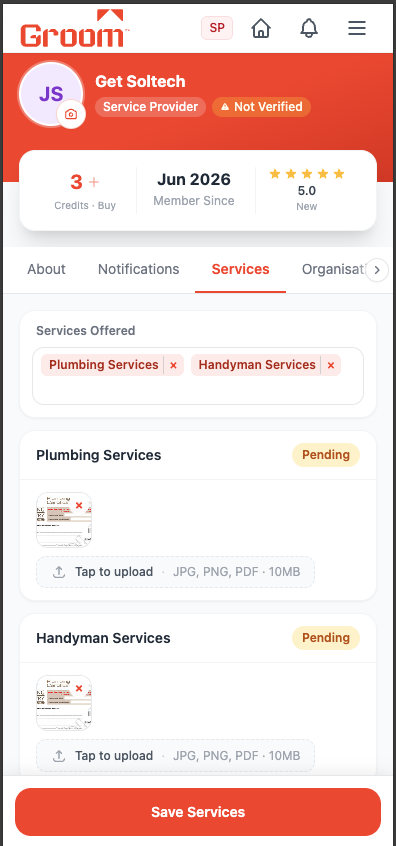
What to do
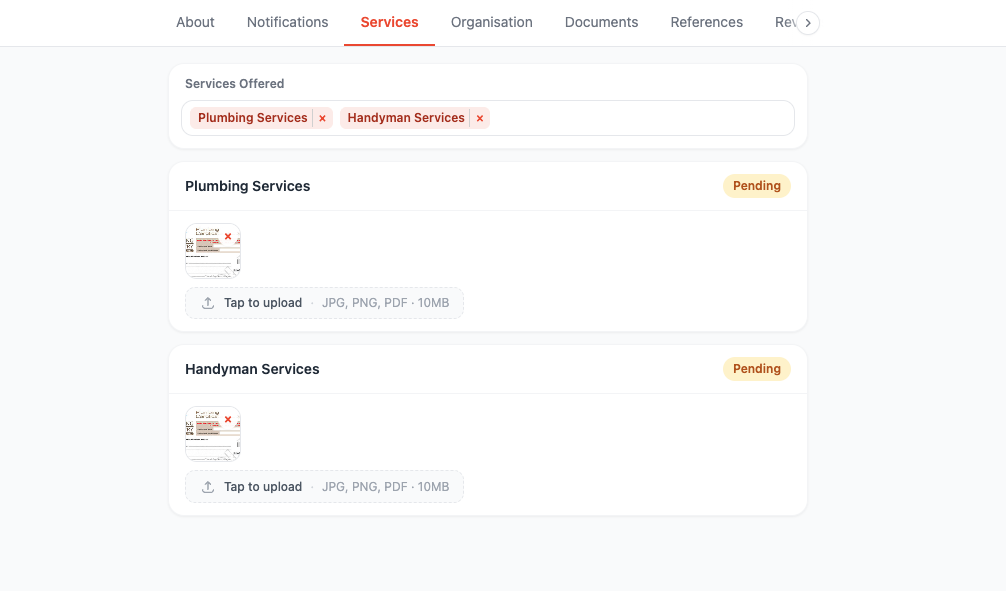
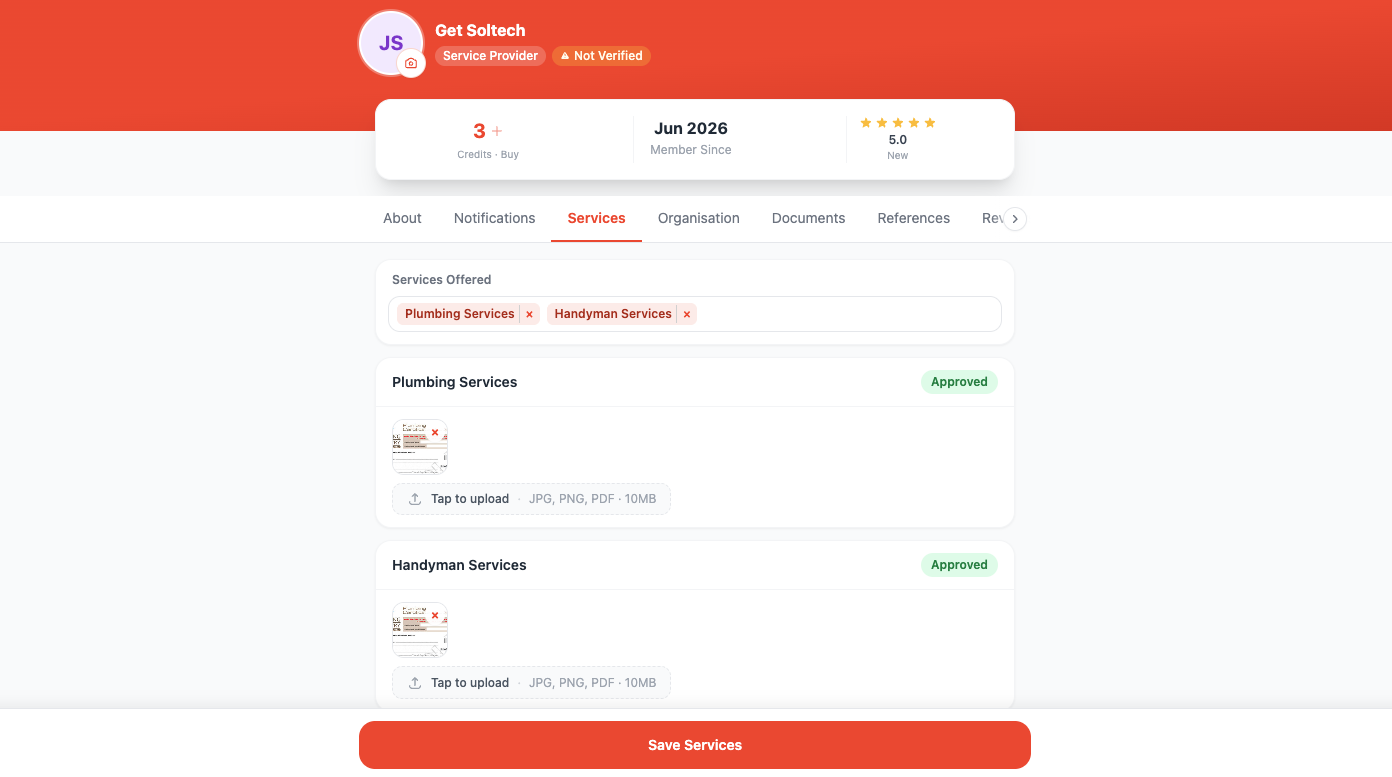
Go to Profile → Services. Choose all the services you offer. Then set your service location (suburb / city).
Select every service category you're qualified to perform. Your location determines which jobs you'll see in the feed. Jobs within 30km of your location are shown to you.
Only select services you can genuinely deliver. False categories lead to poor reviews.
💡 Tip: Add a professional profile photo too — customers trust faces.
Services and area saved. Profile is getting complete.
Wait for Admin Approval
7 / 15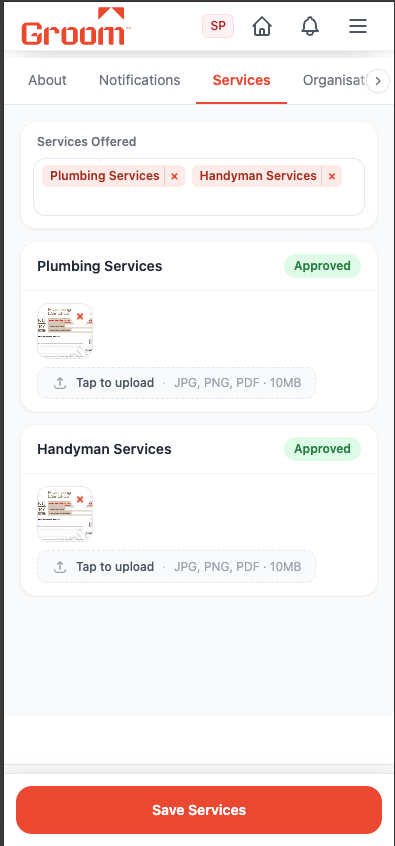
What to do
Once all required information is uploaded, your profile enters the admin review queue.
The HelloGroom team reviews your ID, documents, and profile information. This typically takes 1–2 business days. You'll receive an email or push notification when approved.
You won't see the job feed until your profile is fully approved. Complete everything in one sitting for fastest approval.
💡 Tip: Check your email inbox (and spam folder) for the approval notification.
Notification arrives: "Your profile has been approved!"
Browse the Job Feed
8 / 15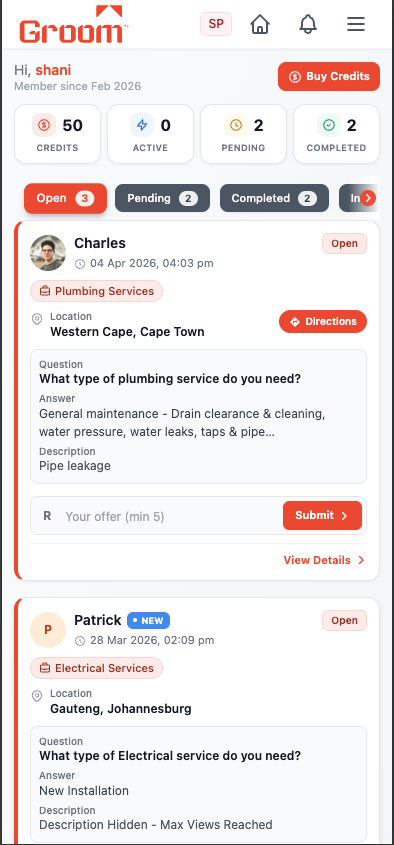
What to do
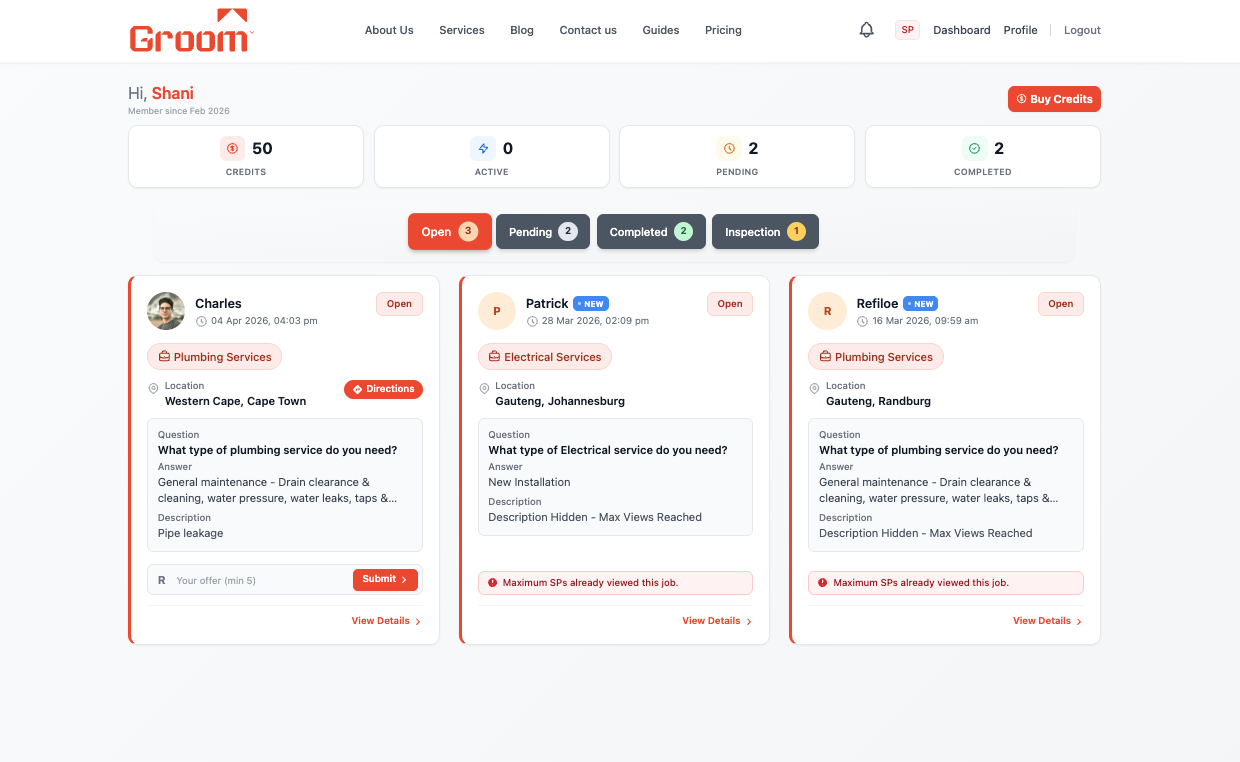
Open your Dashboard. The "Available Jobs" tab shows open jobs near you.
You'll see job cards showing the service type, location, customer name, and a short description. Jobs are filtered to match your service categories and location area.
Jobs from customers with unverified phones are hidden from your feed — this protects you from fraudulent bookings.
💡 Tip: Check the feed regularly — new jobs are posted throughout the day.
You can see available jobs near you.
Open a Job & Read the Details
9 / 15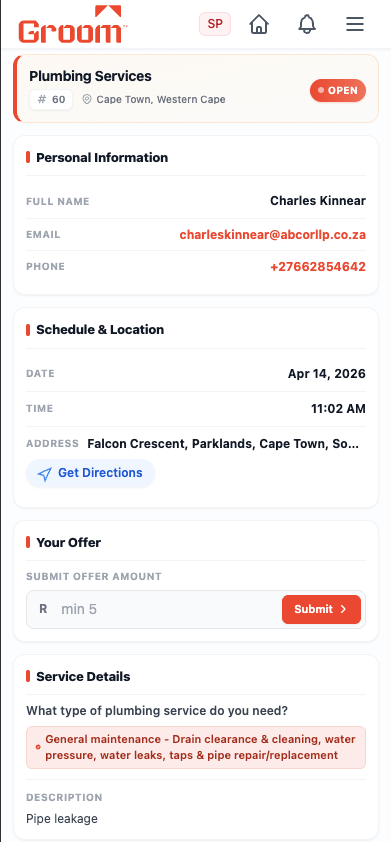
What to do
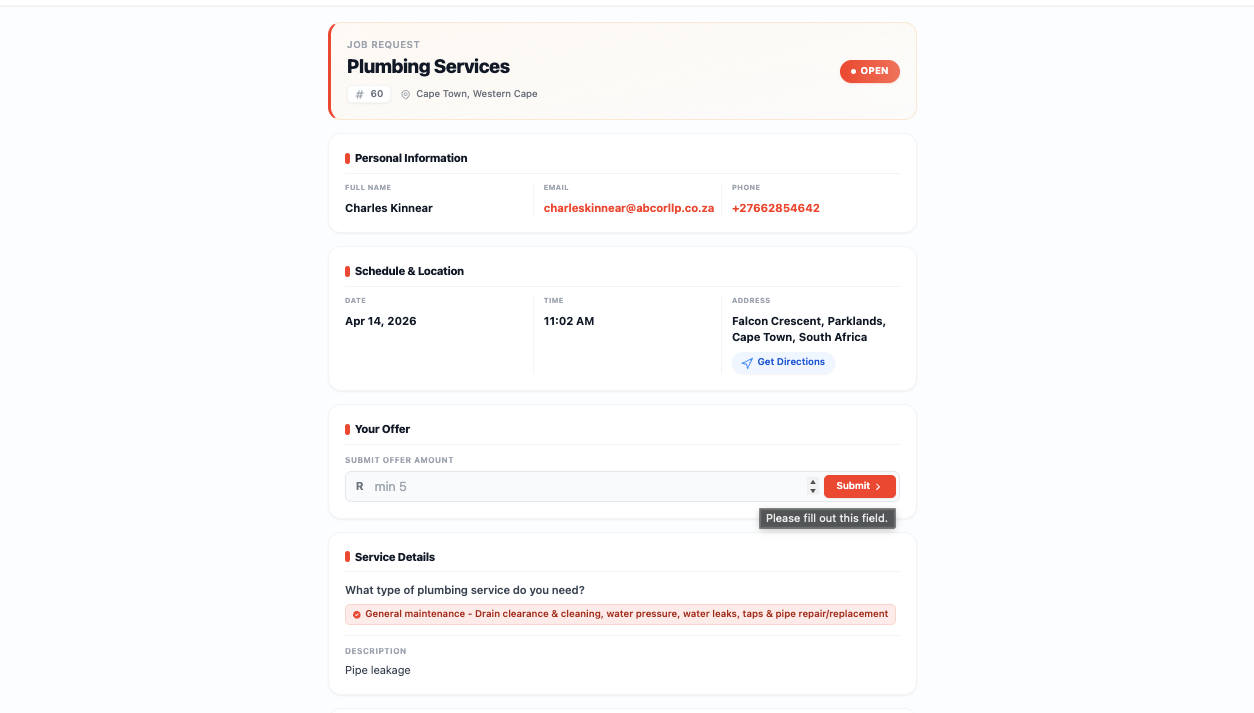
Tap on a job card to open the full job detail page.
You'll see the customer's full description, any photos they've uploaded, the address, preferred date/time, and job priority. Read everything before bidding — make sure you can actually do this job.
Check the address and make sure it's within a distance you can manage. The map link opens Google Maps navigation.
💡 Tip: If the customer uploaded photos of the problem, study them carefully before pricing.
You understand what the job involves and the location.
Submit Your Offer
10 / 15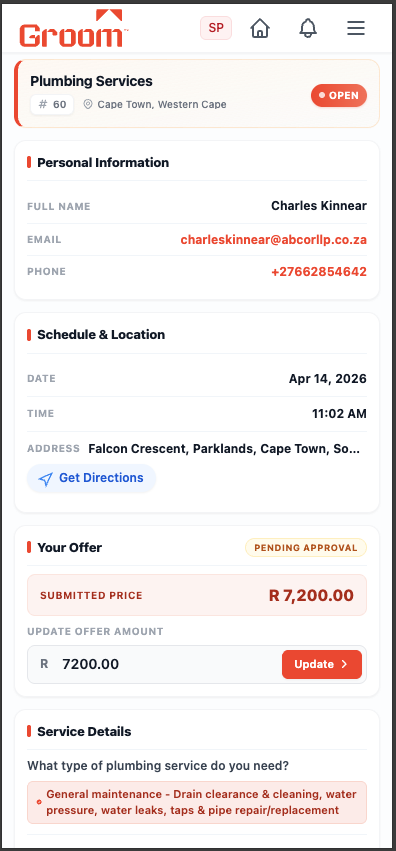
What to do
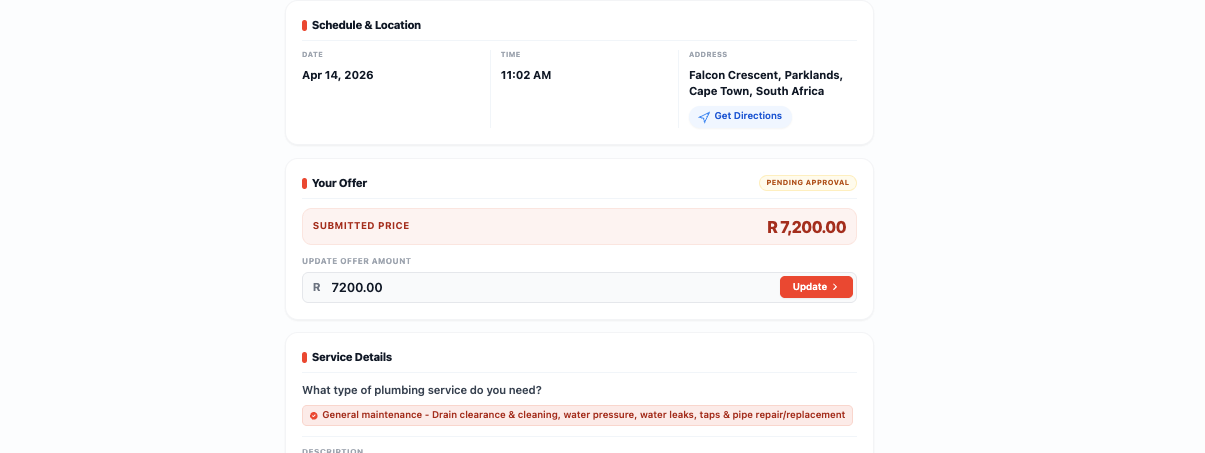
Tap "Make an Offer". Enter your price (in ZAR) and write a professional message. Tap "Submit Offer".
Your price should be fair and competitive. Your message should explain what you'll do, your experience with this type of job, and why the customer should choose you. This uses credits from your account.
A detailed, personalised message wins far more jobs than a price alone. Tell the customer exactly what you'll do.
💡 Tip: View your credit balance before bidding. Credits are consumed per offer submitted.
Offer submitted. Customer is notified.
Offer Accepted — Job is Planned
11 / 15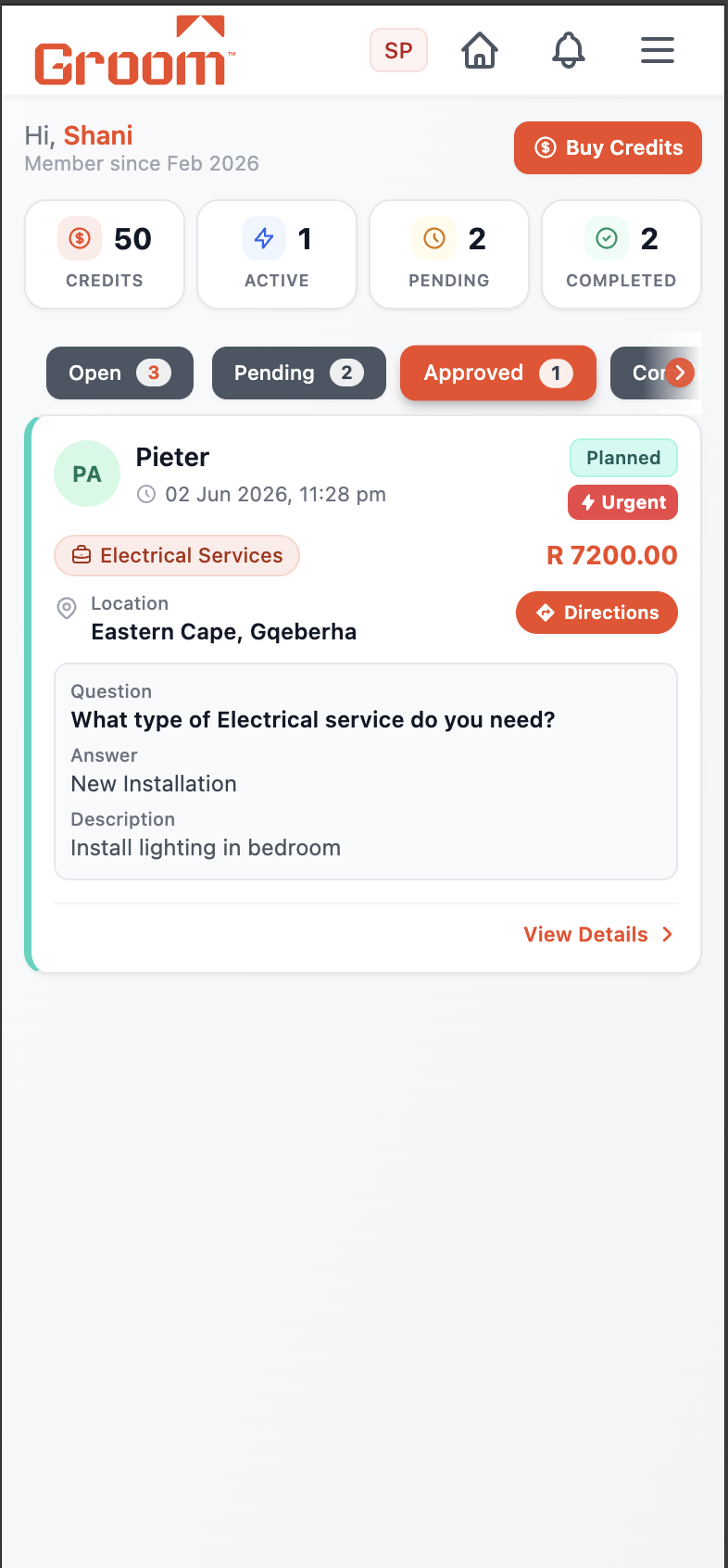
What to do
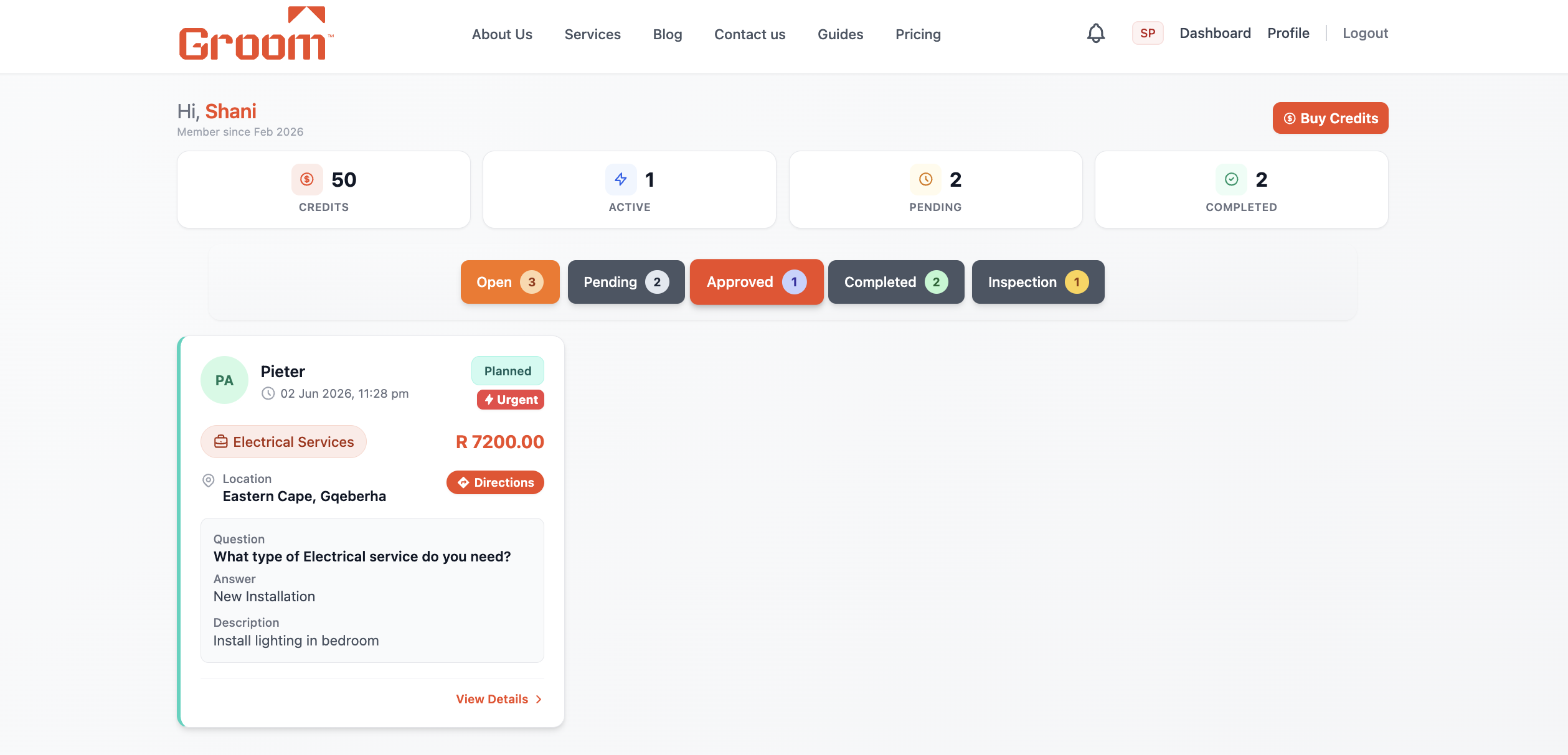
You receive a notification: "Your offer has been accepted!" Your job status changes to "Planned".
The customer has paid via TradeSafe and the money is held in escrow. Contact the customer to confirm the date and time. Prepare your tools, equipment, and anything you need for the job.
💰 Payment is already locked in escrow. You will be paid once the job is completed and confirmed.
💡 Tip: Reach out to the customer as soon as the offer is accepted to confirm details.
Job is confirmed. You're ready to go.
Arrive at the Job — Tap "Request Start"
12 / 15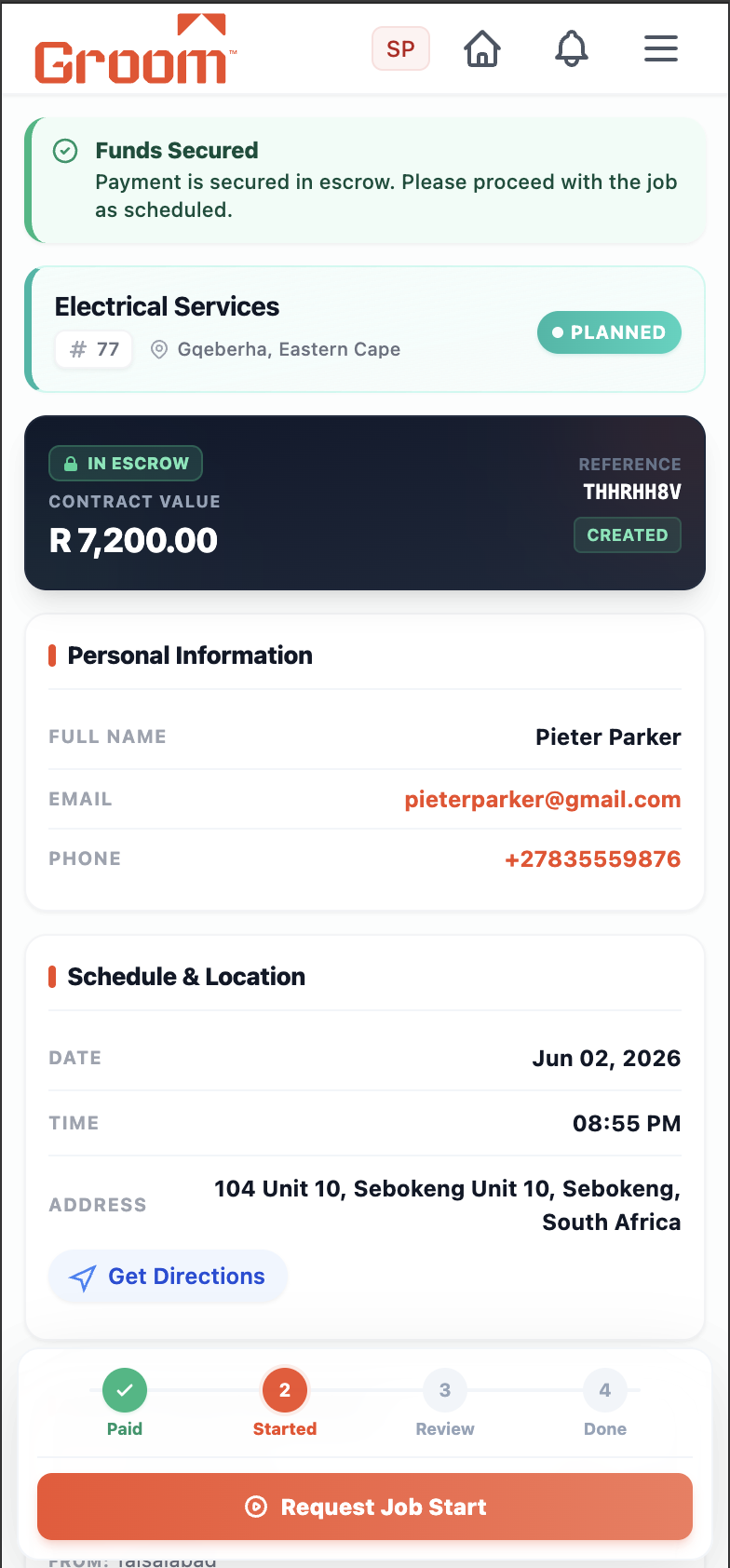
What to do
When you arrive at the customer's location, open the job on your dashboard and tap "Request Start".
This sends a notification to the customer telling them you've arrived and are ready to begin. Wait for the customer to tap "Confirm Start" on their end.
Don't tap "Request Start" until you are physically at the location and ready to work.
💡 Tip: Call the customer if they don't confirm within a few minutes of you arriving.
Job status changes to "Start Pending" until customer confirms.
Customer Confirms — Work Begins
13 / 15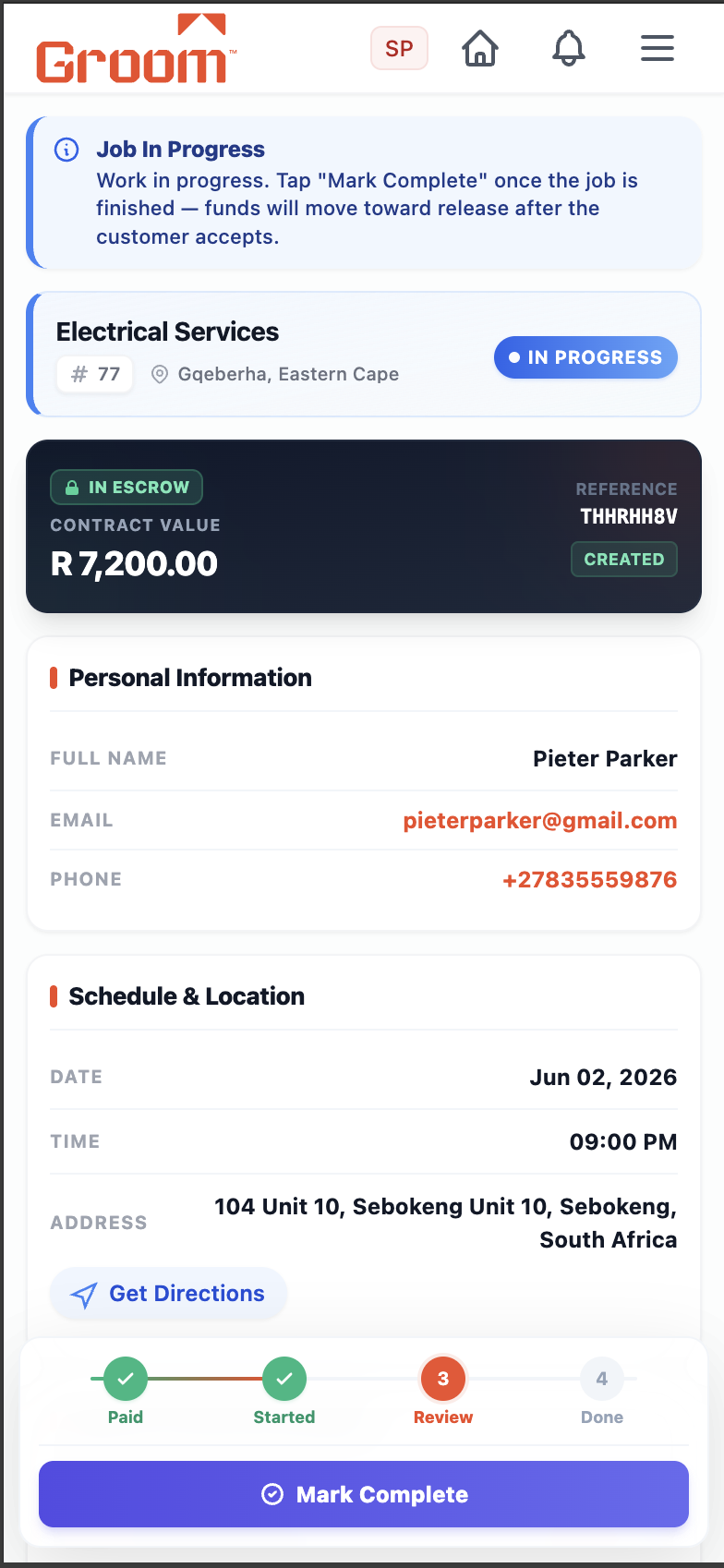
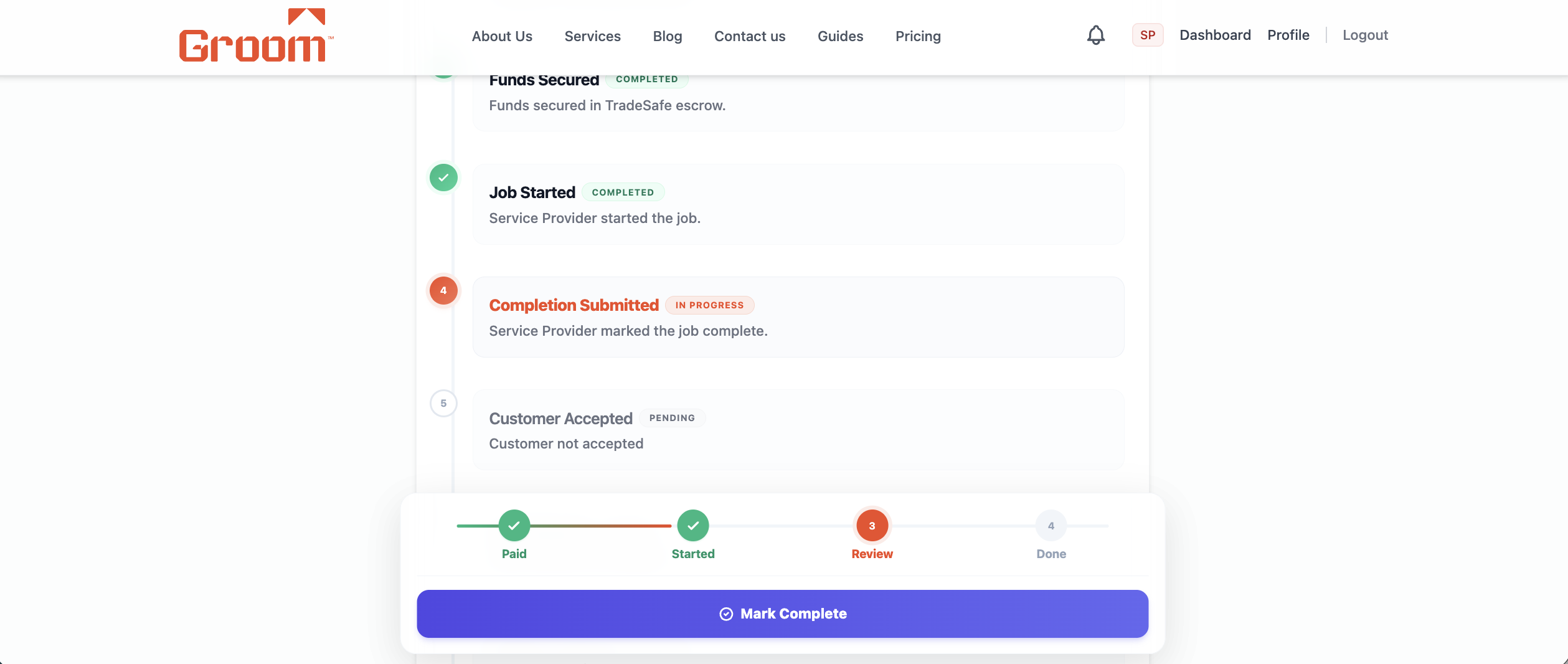
What to do
Once the customer taps "Confirm Start", your job shows "In Progress". Start working!
The clock is running. Focus on delivering quality work. Communicate with the customer throughout if any issues arise or the scope changes. Take photos of your work as you go.
Taking before-and-after photos protects you if a dispute arises later.
💡 Tip: If the job scope changes significantly, discuss the new price with the customer before proceeding.
Work is underway. "In Progress" status on dashboard.
Finish the Work — Tap "Mark Complete"
14 / 15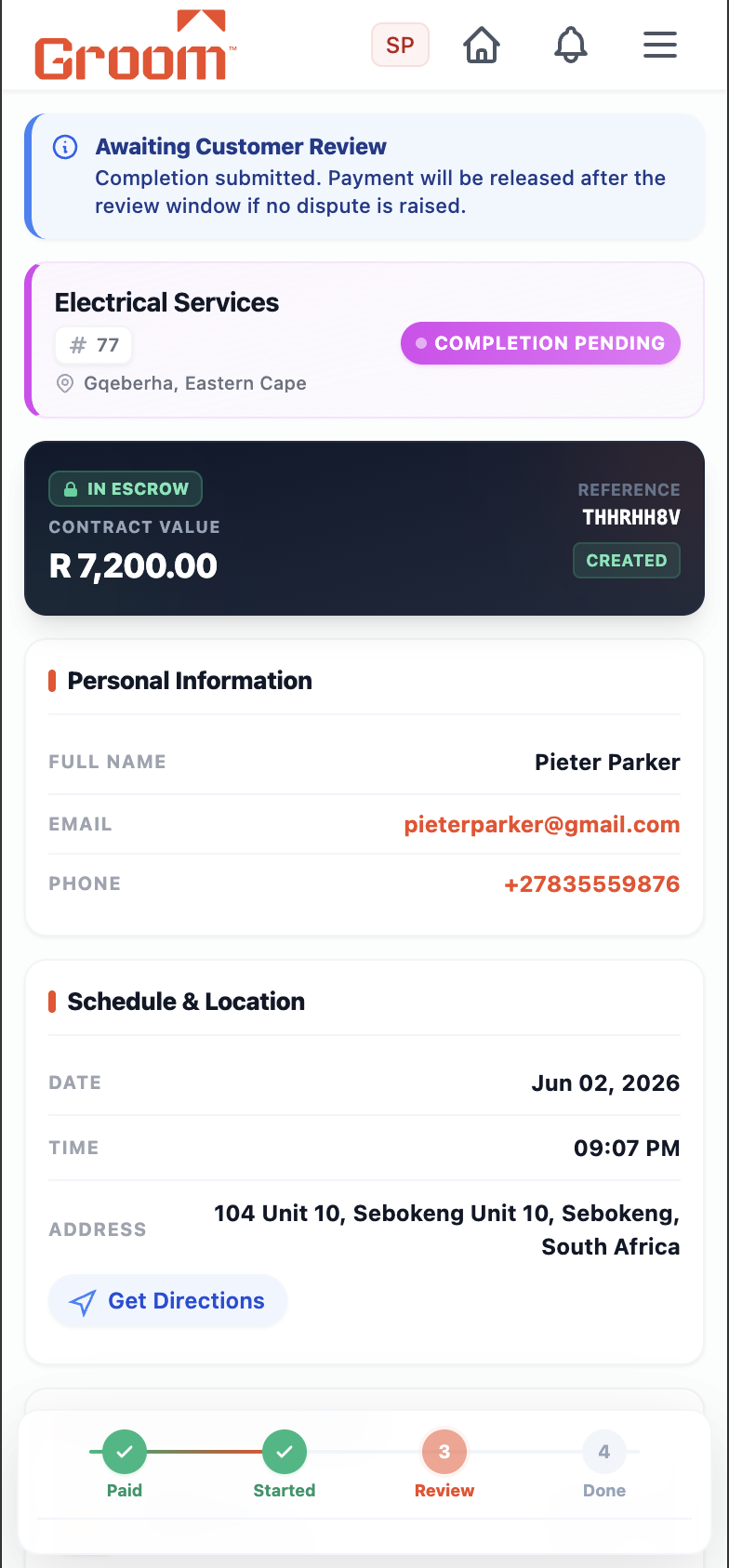
What to do
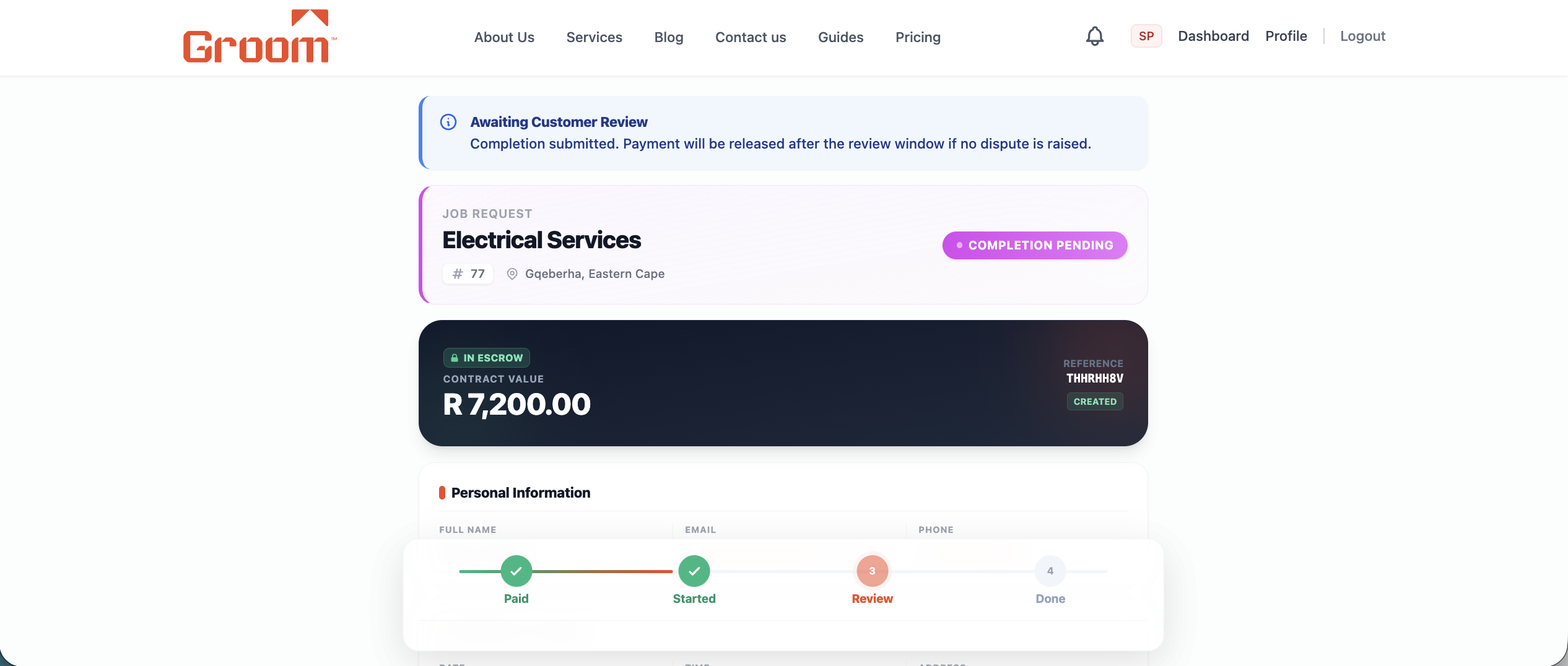
When all the work is done, open your job and tap "Mark as Complete".
This sends the customer a notification that you've finished and the job is ready for their review. The job status changes to "Completion Pending". Make sure everything is cleaned up before marking complete.
Walk through the completed work with the customer before tapping "Mark Complete" — get their verbal confirmation first.
💡 Tip: A satisfied customer who sees clean, quality work will confirm completion faster.
Job status: "Completion Pending". Customer reviews your work.
💰 Customer Confirms — You Get Paid!
15 / 15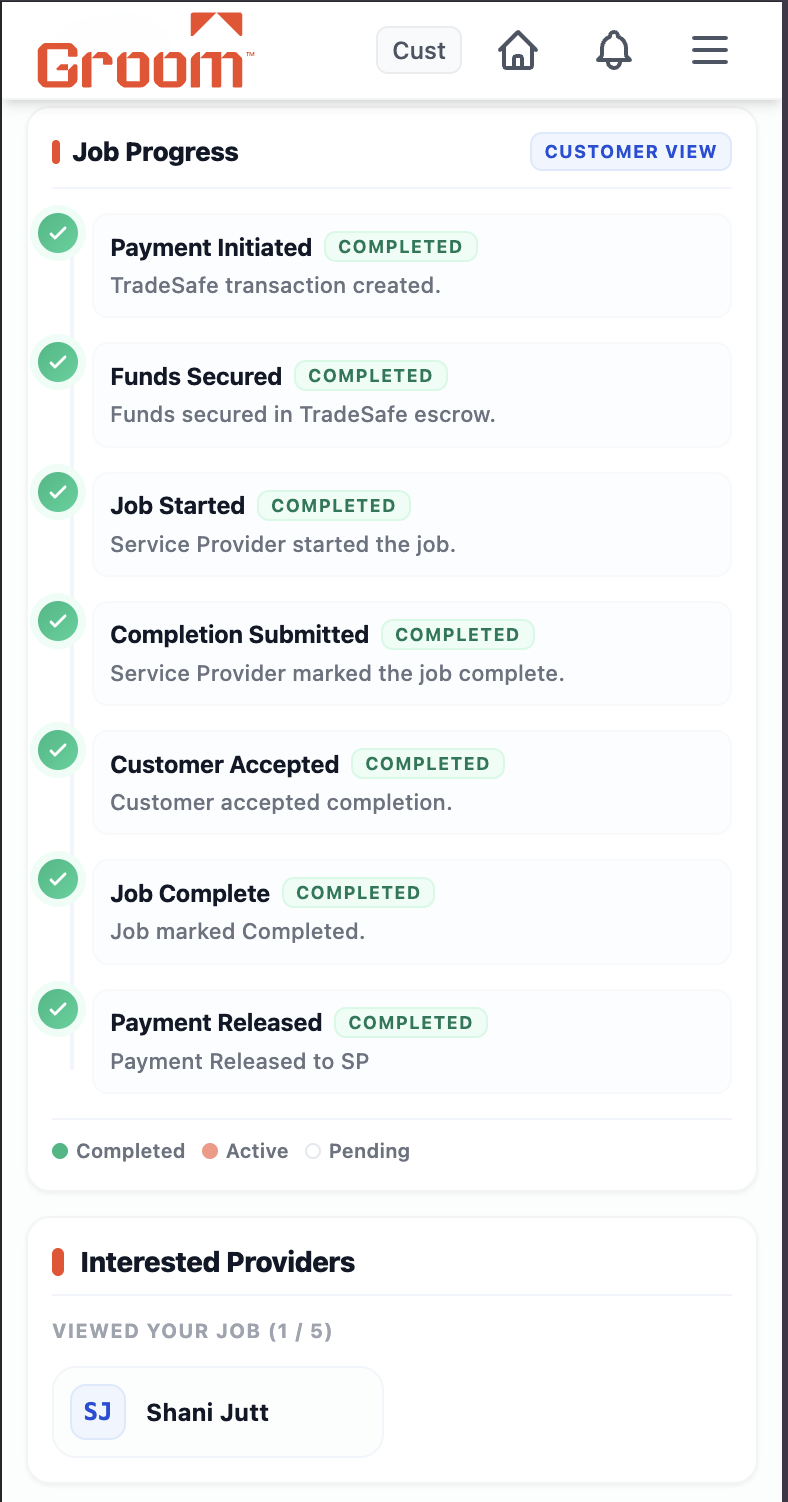
What to do
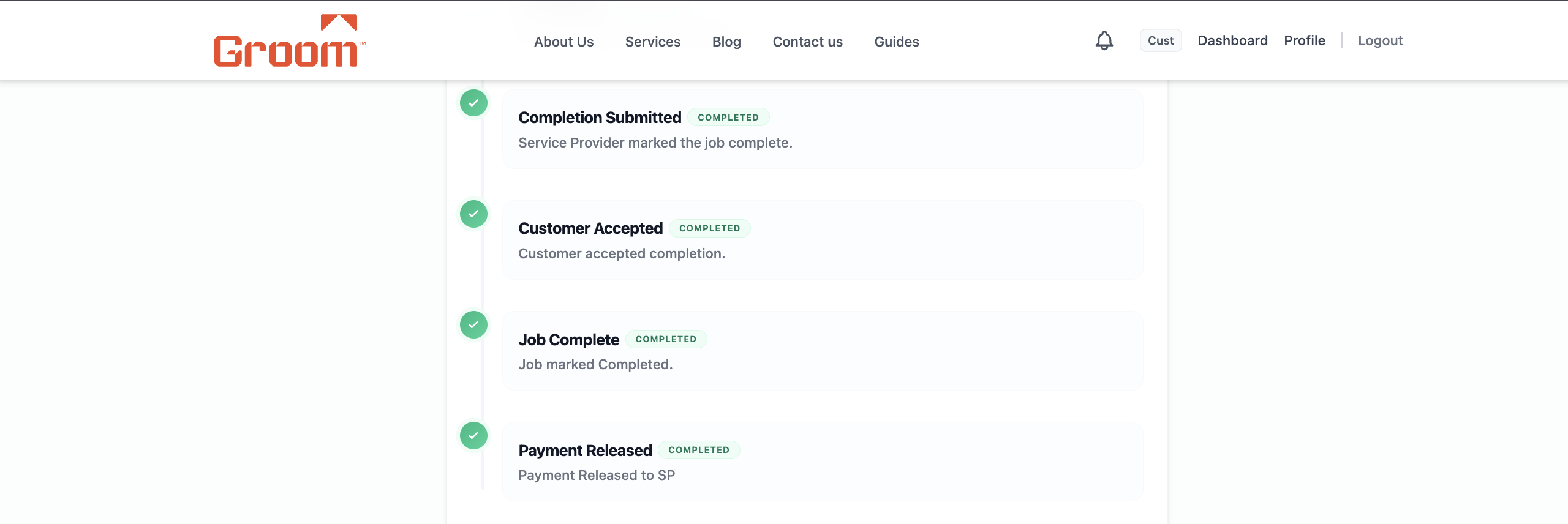
When the customer taps "Accept Completion", TradeSafe releases your payment.
Your payout is processed by TradeSafe and deposited into your bank account within 1–3 business days. The job shows "Completed" on your dashboard. A positive review from the customer will appear on your profile.
If the customer delays or raises a dispute, contact HelloGroom support immediately with your photos and evidence.
💡 Tip: Completed jobs and positive reviews build your reputation — more reviews = more accepted offers.
Funds deposited to your bank account. Job done. 🎉
Ready to Start Earning?
Join hundreds of skilled professionals growing their business on HelloGroom.